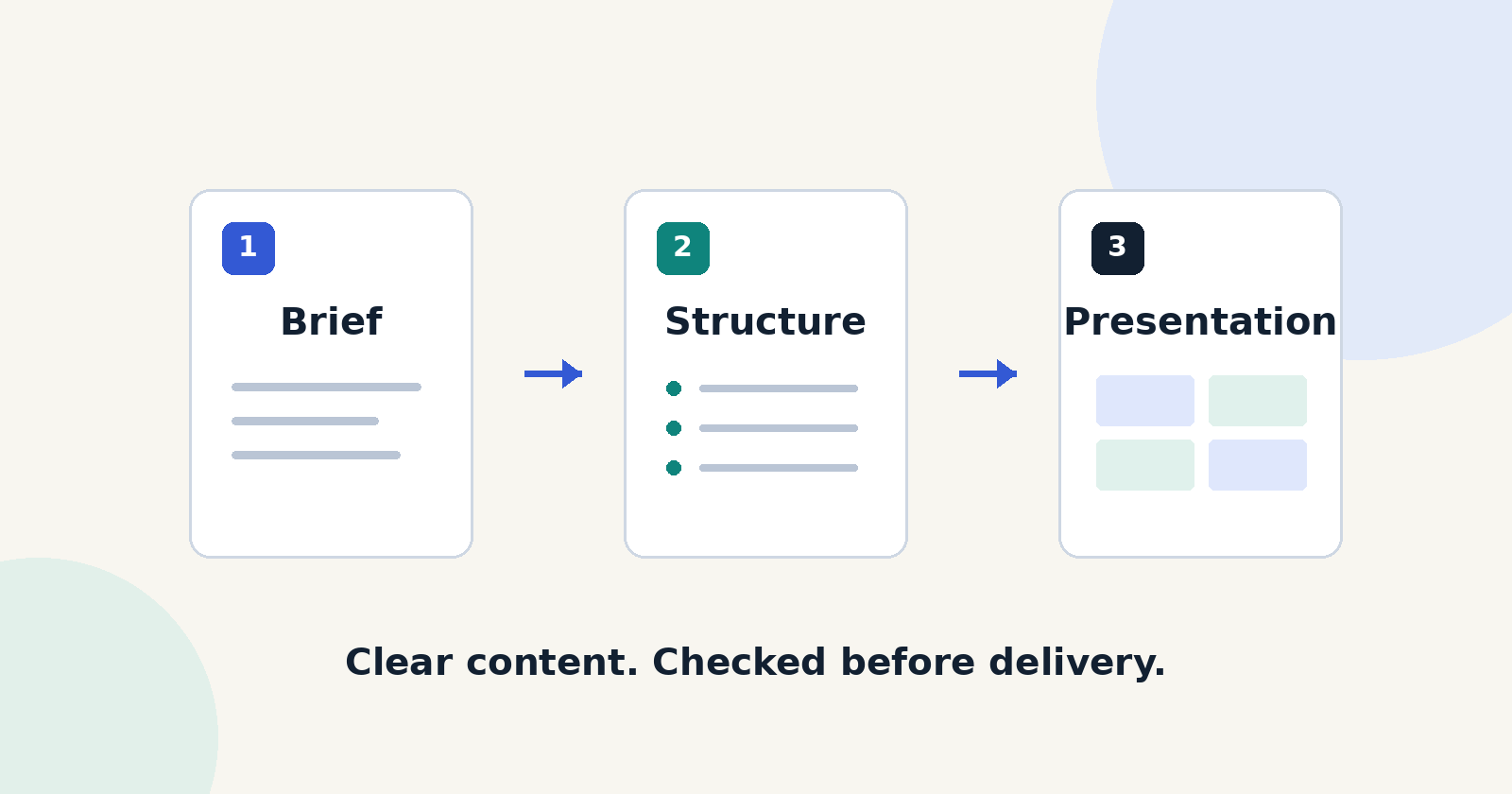
You can build a presentation in Gamma from a short brief: define the audience and goal, write a focused prompt, edit each card and check text direction before exporting. Gamma labels right-to-left language support as beta. The Free plan includes 400 starting credits that don’t renew, and its PDF and PPTX exports carry Gamma branding.
Choosing between them? See our Gamma vs Canva presentations comparison.
For current plans, prices and every Maitz article on Canva and Gamma, see our Canva and Gamma hub.
From a focused brief to a file you can open outside the editor
Gamma can turn a short brief into a structured presentation draft. A useful result still depends on a clear audience, an editorial pass and a check of the exported file. This guide develops an eight-card small-business example, covers right-to-left languages (e.g. Arabic, Hebrew), and explains when to use a link, PDF or PowerPoint file.
Sources checked on October 5, 2026. This guide is based on official documentation. No presentation was generated or exported in a Gamma account for this article, so the example is a proposed exercise, not a hands-on test result.
Before you start
- A Gamma account and a browser. Start at the official gamma.app website and choose Start for free. Documentation says Free requires no credit card. Use the same sign-in method you chose at signup, such as Google or email and password. Sources 1 and 13.
- A short brief and information you are allowed to use. For your first attempt, use the fictional example below rather than client details or internal documents.
- Free includes 400 non-refreshing starter credits. The initial Create with AI generator is capped at 10 slides per prompt; the documentation says this cap does not apply to Agent or to the total slides in a deck. AI actions still use credits. Sources 1, 3 and 9.
Begin with Free if the required options are available in your account. You do not need an upgrade to read this guide or plan your deck. Check the actual price, billing period and entitlements before purchasing anything.
1 Define the decision before the design
“Make a professional business presentation” leaves too much for the tool to decide. A useful brief names the audience, the decision, the known facts and the missing information. Decide how the deck will be delivered, too: a live Gamma link or a file someone will open elsewhere.
The worked example
Gefen Studio is a fictional presentation-design business. Inquiries arrive by email and a website form, sometimes without essential details. The deck asks the manager to approve a two-week pilot: collect the missing information, have a designer review the scope, then send an approved quote. The two-week period is a choice for this exercise, not a measured recommendation.
An eight-card outline
- Decision: approve a defined two-week pilot.
- Problem: incomplete inquiries delay review.
- Process: receive, complete, review and quote.
- Example: a message asking for the missing details.
- Ownership: who coordinates inquiries and who approves the scope.
- Measurement: time to first reply and inquiries waiting for action.
- Guardrails: no price or delivery promise before approval.
- Next step: name an owner, set a start date and schedule the review.
The outline doubles as a quality check. Compare the draft with it after generation. Remove an unrequested revenue chart, or add a missing responsibilities card. You do not need to regenerate the entire presentation to fix one part.
2 Copy this starter prompt
Copy the text below. For real work, replace the business and its details while keeping the instruction not to invent facts. A constrained prompt helps, but it does not guarantee that the model will follow every instruction.
Create an 8-card presentation for the manager of Gefen Studio, a fictional presentation-design business. The decision is whether to start a two-week pilot to improve the handling of new inquiries.

Use only these facts: inquiries arrive by email and a website form. Some are missing the type of work, delivery deadline and available source materials. There are no verified historical figures for response times, revenue or conversion rates. One coordinator manages inquiries and a designer checks the scope. A quote and delivery date require human approval.

Card structure:
1. The decision: approve a two-week pilot.
2. The problem: incomplete inquiries create extra back-and-forth.
3. The proposed process: receive, request missing details, designer review, approved quote.
4. A short example message requesting missing details.
5. Responsibilities: inquiry coordinator and designer.
6. How to evaluate the pilot: time to first reply, inquiries awaiting information, and unhandled inquiries. These are proposed measures; do not invent numeric values.
7. Guardrails: no price or availability commitment before review, and no disclosure of other clients’ information.
8. Next step: name an owner and start date, then review at the end of the two weeks.

Write in clear English. Give each card one informative heading and no more than three short points. Use only the supplied facts. Mark missing information as “Needs review.” Do not invent testimonials, improvement percentages or savings claims.

Design: light background, dark text, one accent color, and a simple process diagram on card 3. Avoid decorative stock imagery that adds no information. Keep all labels as editable text rather than text inside images. Prioritize readability when the presentation is exported.
What a useful draft should contain
Look for eight cards with a clear sequence, no invented figures, a concrete example message and a decision at the end. If the result reads like generic marketing copy, return each card to its job: explain a specific problem, process or decision.
3 Generate the draft and choose a look
Current documentation describes Gamma 5 with an Agent-first creation flow. Some screens and older guides still show the classic generator. Follow the route available in your account; button labels may change. Source 2.
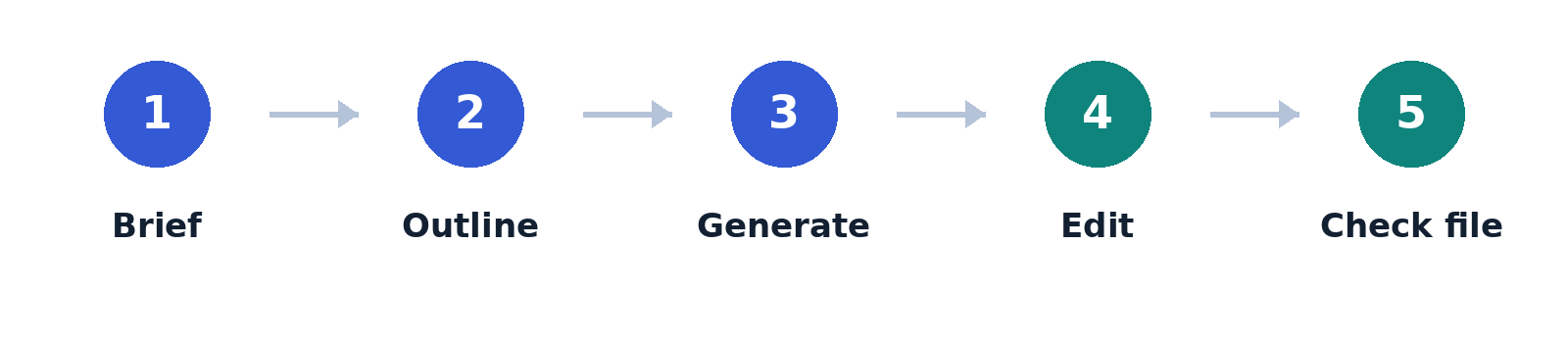
- Agent route: paste the brief in the dashboard prompt bar and specify an eight-card presentation. Answer questions about the audience and goal, review and revise the proposed plan, then approve generation. Supply only information you know.
- Classic route: choose Use classic generator, then Generate when starting from a brief. Paste suits existing written content. Import is for existing material and requires checking that you may upload it. Source 10.
- If a language selector is shown, choose your intended language. Confirm the output type, card count and outline before the final generation step.
A light theme, strong contrast and one accent color suit this exercise. Start with a simple design. If text-density controls are offered, choose a concise version; it is usually easier to add a useful explanation than to rescue an overloaded card.
4 Edit each card for its purpose
Current Gamma documentation calls its content sections slides; some controls still say cards. This guide uses cards. They can expand with their content, so they are not necessarily fixed-size slides. If you need PowerPoint or a widescreen display, open the top-right three-dot menu, then Page Setup, to check the card aspect ratio, such as 16:9. Source 3.
- Content: click text to edit it. Select a passage for size and alignment controls, then remove repetition and replace headings such as “A new future” with headings that tell the audience what matters.
- Structure: split a card that tries to explain the problem, process and measures at once. Put detail in speaker notes when it is needed only during the talk.
- Images: use /image or the insert menu to add an image. Select an existing image to replace, crop or reposition it. Prefer an image you have permission to use or a diagram that explains the process. Check the source and license before publishing. Source 4.
- Branding: open Styles, then Theme. Apply theme preset uses a saved theme; Save as saves the current theme for reuse. Current text-editing documentation lists custom fonts on all plans; headers and footers require Pro. In Gamma 5, a theme change applies to the current file, not automatically to every deck using that theme. Sources 5 and 11.
Make focused revisions. “On card 2, reduce the text to three points and keep only facts from the brief” is more useful than asking the tool to improve the whole deck, and may avoid unnecessary full regenerations.
5 Check right-to-left text
Gamma documents support for right-to-left languages such as Arabic and Hebrew, but labels it beta. The documented route is to select the desired language in the generator and write the prompt in that language; Gamma detects the direction. Mixed right-to-left and English text may need manual adjustments. Right alignment and paragraph direction are separate checks. Source 6.
- Inspect headings, paragraphs and bullet lists. The bullet marker should appear on the correct side, not just the words.
- Check numbers, brackets, abbreviations and web addresses. A right-to-left line mixed with “Q4” or a date can look correct in the editor and change during export.
- Choose a font that renders your script, Latin characters and numbers clearly. Test a paragraph, bold text and punctuation rather than judging a short heading alone.
- Review column order and arrows. In a right-to-left process diagram, the first step should appear where readers expect it. An arrow pointing the wrong way changes the meaning.
If a mixed-language line breaks, simplify the wording or put the English term on a separate short line. Do not manually reverse the letters; that can damage editing, copying and accessibility. To adapt the starter prompt, ask for natural wording in your language, RTL paragraph direction and right-aligned text, then check the result.
A card with a clear job
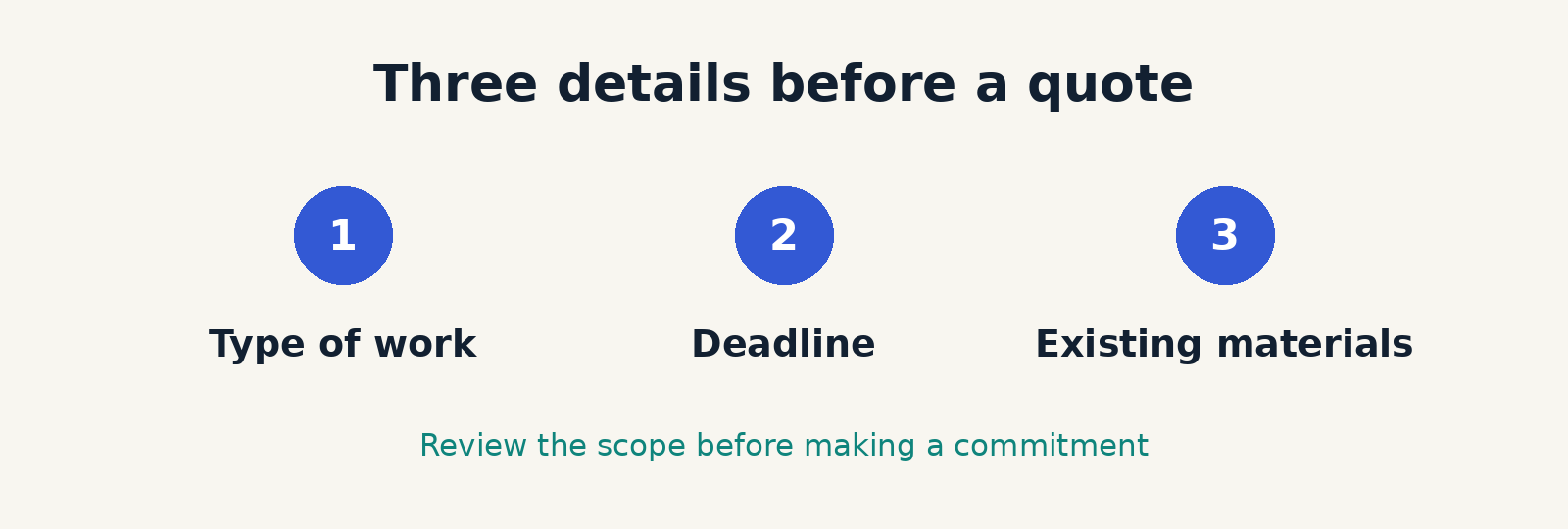
Heading: “Three details before a quote.” Suggested message: “Thanks for contacting Gefen Studio. To review your request, could you tell us what kind of presentation you need, when it is due and what materials you already have? Once we have reviewed the scope, we can come back with a proposal.”
The message does not promise a response time or a price. Read it aloud and ask whether it sounds like something the business would send. Any additional promise needs to come from approved information.
6 Choose a link PDF or PowerPoint
Official help lists PDF, PPTX and PNG exports under Share, then Export, or the three-dot menu. Choose All cards for the entire deck; otherwise only the current card may export. Export reflects the presentation view, so check Present before downloading. On Free, Gamma branding appears in PDF and PPTX exports based on the workspace plan at the time of export. Source 7.
A link for viewing and presenting
Choose a link when you want to show the Gamma version, including supported interactive content. Check link access and workspace permissions, which can override document restrictions. Choose viewing, commenting or editing; use viewing access when that is enough. Open it in a browser window signed out of your account to check the recipient experience. Do not use an open link for confidential material. Source 8.
PDF for a fixed version
PDF is useful when the recipient needs to read or present a fixed version. Open the download in a PDF viewer outside Gamma and inspect every page for cut-off text. Do not rely on a video or interactive element behaving as it does in the live presentation.
PPTX for further editing
Choose PowerPoint when the recipient needs to change the deck. Check the exported file in the application they will use, including fonts, wrapping, tables and text direction. Gamma warns that exports can differ from the original: gradients may change, and animations or embedded elements do not carry over as they appear online. Sources 7 and 12.
Moving to Google Slides
The Help Center documents downloading a PPTX and importing it into Google Slides. A direct option may also appear in your account. PPTX import introduces another conversion; Google Slides substitutes its own fonts for embedded PPTX fonts, so inspect the deck again. There is no guarantee of identical editing or layout across all three tools. Source 7.
If the layout changes
Return to the affected card: shorten the text, simplify the layout and try a font available on the destination computer. If no editing is needed, consider whether PDF meets the delivery requirement. Give exported files a version and date so that an earlier draft is not sent by mistake.
7 Common problems and useful fixes
The presentation sounds generic
Check that the prompt named an audience and a decision. Pick one card and write down its purpose in one sentence. Replace vague claims with a concrete example from the brief. Do not add figures merely to fill space.
It invented facts
Compare every price, percentage, client name and date with the source material. Delete unsupported claims. In this example, it is reasonable to propose measures, but not to present improvements as though the pilot had already happened.
Right-to-left text looks right in the editor but breaks in the file
Check paragraph direction, fonts and mixed-language text, then export the affected card or the deck again. Confirm the fix in the new file, not just in the editor. If the issue persists, change the layout or choose a delivery format that still meets the recipient’s needs.
One card is overloaded
Shrinking the font should not be the first fix. Keep one message on the card, split the content and move nonessential detail elsewhere. Check readability at the size the audience will actually see.
Credits have run out or an option is locked
Check the account balance and plan. Starter credits are not a monthly renewing budget. Continue with manual editing where available, or stop and decide whether an upgrade is worthwhile. Avoid regenerating the whole deck to fix one sentence. Sources 1 and 9.
Before you send it
- The audience and decision are clear on the opening card.
- Every fact is checked and fictional examples are labeled.
- No client details, images or logos are included without permission.
- Text direction, numbers, links and diagrams have been checked in presentation view.
- The file opens outside Gamma and every page has been reviewed.
- Link permissions match the recipient, and the file is the latest version.
A successful exercise gives the manager enough information to understand the pilot and decide what happens next. If the deck looks polished but the requested action is unclear, revisit the final card.
Frequently asked questions
Can I make a presentation for free?
Official documentation says you can start on the Free plan. Allow for the credit balance, the per-prompt generation limit and export branding. If you work in a right-to-left language, note that Gamma labels RTL support as beta. Sources 1, 6 and 7.
Is a prompt in my own language enough?
It helps specify the content language. It does not replace checks of text direction, fonts, element order or the exported file.
Should two languages share one deck?
If the two audiences receive the presentation separately, two edited language versions are usually easier to read. If one bilingual deck is required, use a consistent hierarchy and check mixed-language text carefully. This is editorial advice, not an official Gamma restriction.
Do I need to pay to download a file?
The official pages list basic export on Free, with plan limitations and branding. Removing branding and using advanced options may require a paid plan. Check the current entitlement in your account. Sources 1 and 7.
Sources and review method
These Gamma sources were checked on October 5, 2026. Feature descriptions are documentation-based; the brief, prompt, examples and illustrations were created for this guide. Working time, generated-output quality and export reliability were not measured in a live account. Interface, pricing and entitlements may change.
- Gamma pricing and plan comparison (gamma.app)
- Create with Agent in Gamma (help.gamma.app)
- Slides and cards in Gamma (help.gamma.app)
- Add and edit images (help.gamma.app)
- Customize themes colors and fonts (help.gamma.app)
- Right to left language support (help.gamma.app)
- Export to PDF PowerPoint and Google Slides (help.gamma.app)
- Collaboration and sharing permissions (help.gamma.app)
- How credits work (help.gamma.app)
- Classic Generate Paste and Import (help.gamma.app)
- Add edit and style text including custom fonts (help.gamma.app)
- Why exported files can look different (help.gamma.app)
- Sign in to a Gamma account (help.gamma.app)

