
When a Make scenario stops, another click on Run once is not always the right move. First establish what failed, what already happened and which copy you are repairing. Here we deliberately break a JSON input, retain the unfinished work, resolve it manually, then fix the main source separately for future runs.
This exercise was performed on October 4, 2026 using teaching data only. A DataError was retained as an incomplete execution, resolved in one manual attempt and returned recovery_result=reviewed. After a separate source correction, a fresh main-scenario run succeeded too. All work stayed inside Tools and JSON; no messages, webhook calls or Google Sheets writes were tested.
1. Build a small, inspectable path
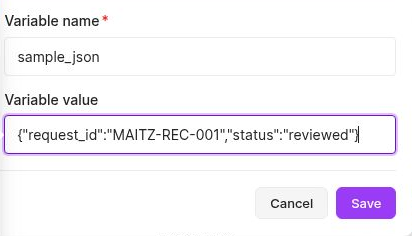
In a test scenario, add Tools > Set variable. Enter sample_json as Variable name and begin with the valid object below as Variable value. Follow it with JSON > Parse JSON, then another Tools > Set variable named recovery_result, mapped from the parser’s status output. The photographed source is module 1, the parser 2 and the result 3; your module numbers may differ.
{
  "request_id": "MAITZ-REC-001",
  "status": "reviewed"
}
During setup, we used Make’s supported inference from a valid JSON run rather than creating a named Data structure. If status is not yet available to map, first parse valid data to expose that field. Before the failure test, confirm that the main parser’s JSON string maps sample_json instead of retaining a fixed literal. Leave scheduling off and check available credits and storage.
2. Retain the failure without automatic retries
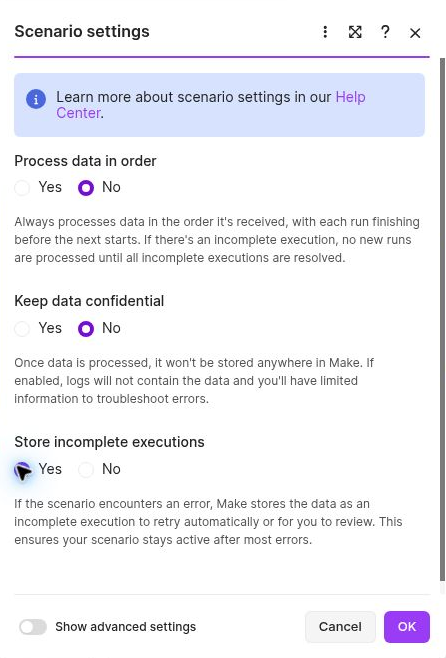
Open Scenario settings and set Store incomplete executions to Yes. Use only the nonpersonal teaching values here because you will inspect the retained input. Keep data confidential remained No in our test. Do not change privacy settings on a process containing personal information just to obtain a screenshot.
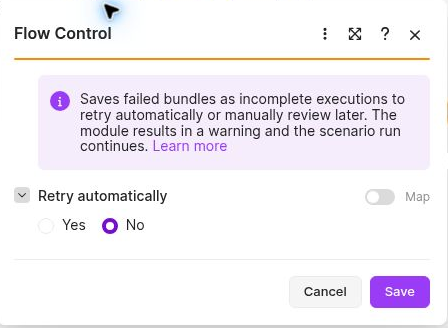
Add an error route to Parse JSON and select Retry. In the tested interface, its field was labeled Retry automatically; select No and save. This leaves the retained item for manual handling. The recovery path shown here did not require activating the scenario schedule.
3. Produce a failure you can explain
Return to the first Tools module and replace sample_json with the malformed object below. Its only defect is the extra comma before the final brace. Save the module and scenario, then click Run once. In History, open the run through its date/time link. The tested interface did not have a button labeled Details.
{
  "request_id": "MAITZ-REC-001",
  "status": "reviewed",
}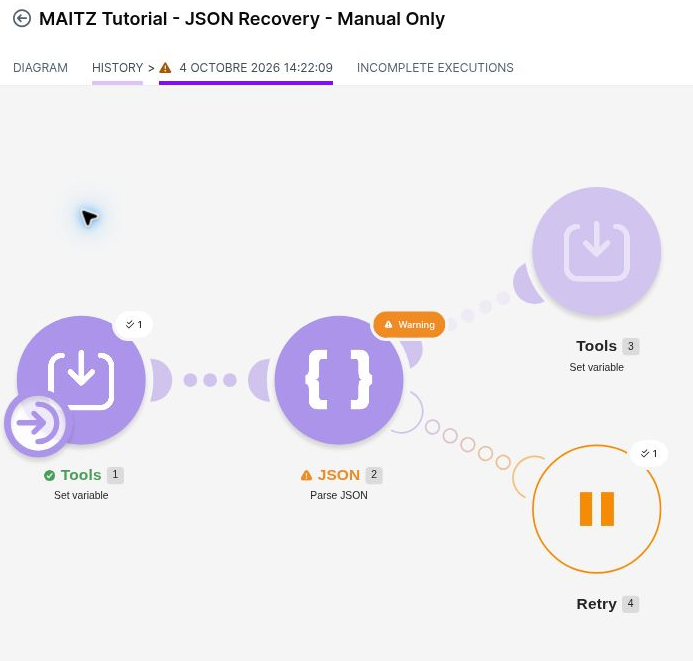
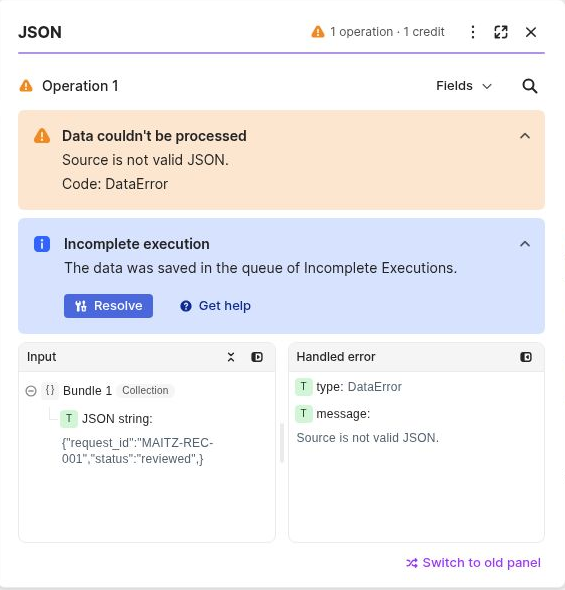
The actual message was “Source is not valid JSON.” The error code was DataError. The module and execution showed Warning because the Retry route handled the failure. The result module had not run. Open Parse JSON and compare Input with the message instead of relying on the status color.
4. Identify the retained item
Open Incomplete executions and locate the item by its run time. Ours showed Unresolved, Attempts=0 and a dash under Scheduled In. The error panel also confirmed that data had been saved to the queue and offered Resolve. These indicate work awaiting attention, not successful parsing.
Open the item’s date link. In the tested view, clicking its scenario diagram entered the recovery editor; we then opened the failed Parse JSON module. Check that this is the intended item and that no competing attempt is running. An inactive-scenario notice is not a reason to activate scheduling: we ran manually within the retained copy.
5. Correct the recovery copy
Inside Parse JSON in the retained copy, replace the mapped JSON string with the valid literal, without the final comma. Click Save on the module, then Run once within that copy. This is a targeted correction for the stopped item. Do not assume that changing the main source automatically changes already-retained input.
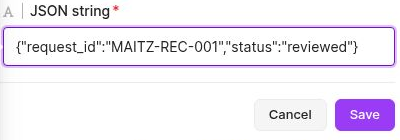
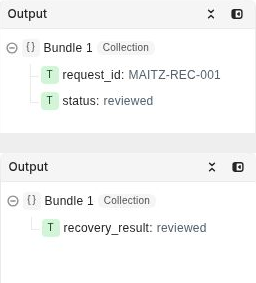
In the observed recovery attempt, only Parse JSON and the following Tools module ran; the source was not executed again. Parsing returned request_id=MAITZ-REC-001 and status=reviewed, while the endpoint returned recovery_result=reviewed. Open the outputs to inspect the values themselves.
6. Verify that the retained item is resolved
Return to Incomplete executions. After correction, the item showed Resolved, Attempts=1 and a dash under Scheduled In. Our recovery attempt ended in Success. If a later module fails, recovery is still unfinished: investigate that new stopping point.
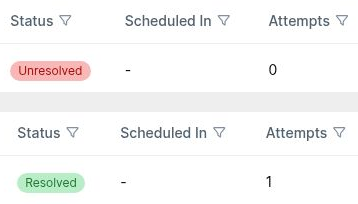
Compare the list status with the parser and endpoint outputs. Resolved alone does not tell you what a field contained. This local exercise let us check all three without creating a file, row or message in an external service.
7. Repair the main scenario separately
Resolving the retained item did not repair sample_json at the source. Return to the main scenario, open the first Tools module and remove the extra comma there. Check that the main Parse JSON still maps sample_json. The literal entered in the recovery copy does not replace the source for the next event. Save your changes.
Now click Run once in the main scenario. In this test, all three modules ran successfully and recovery_result again returned reviewed. We finished with the scenario Inactive, no execution running and no further attempt pending for the repaired item. Repairing an old event and preventing the next event from failing are separate checks.
What this teaches for a real workflow
The exercise demonstrates recovery from invalid local parsing. It does not establish that another email send or row append is safe from duplication. Before repeating an external action, check whether it already completed at the destination. A timeout can follow a successful write. Without clear evidence, retain the uncertainty for review rather than assuming failure.
Retry and Replay run are also different. Replay uses earlier trigger data with the current scenario and may revisit successful steps. Here we manually corrected the retained item; we did not use Replay. The four recorded runs consumed 10 included credits: 3 for setup, 2 for failure, 2 for recovery and 3 for the fresh run. That is a measurement of this exercise, not a guaranteed cost for other scenarios.
Practice files and the earlier version
The revised pack contains valid JSON, deliberately malformed JSON text, observed outcomes and reader instructions. It is locally prepared material, not an official blueprint or an importable scenario. It contains no execution URLs, account identifiers, private logs or customer data.
Download the local recovery exercise
The earlier Make pack remains available. Its G5 exercise uses a Data store and authored expectations; it is not the photographed, tested exercise here. If you also study that older design, the following storage limitation still applies:
Before creating the store, check the account’s unused allocation. According to Make’s documentation, Free includes 1 MB of Data store storage, and each store requires at least 1 MB. That allocation supports one store, not several separate stores for these exercises at the same time. If it is already allocated, stop before creating another store; do not delete existing data or activate a paid upgrade just to follow the exercise.
For connections, allowance and maintenance, read our Make review for small businesses.
Official references: Manage incomplete executions, Retry error handler, Scenario run replay, Make Help Center: Data stores.

