
To add automatic captions and export a readable video, check three things separately: what was said, when each caption appears, and how the text looks in the final file. An accurate transcript can still break on screen, especially when a right-to-left language such as Arabic or Hebrew is mixed with English and numbers. This guide moves from transcription to an SRT file, covers importing it into an editor, and demonstrates a local caption burn-in that was actually tested.
The final deliverable: an MP4 with captions embedded in the image, alongside a separate subtitle file you can revise later. Start with a clip of about half a minute before tackling a long video.
Updated October 3, 2026. The burn-in demonstration here was tested locally in FFmpeg. It uses a silent synthetic clip with four right-to-left captions written in advance, not an AI transcription-accuracy test, and no other language was tested. The CapCut and ElevenLabs instructions were checked against official documentation; neither interface was tested in an account.
Before you start: burned-in captions or a separate file?
Burned-in captions remain in the video’s pixels even when the player is not displaying a subtitle track. They are useful when a consistent design matters. The trade-off is that every correction requires a new export, and viewers cannot turn them off or resize them. A separate SRT file stores the text and display times and is easier to edit.
Always keep the original video, transcript, and subtitle file. If your publishing platform supports separate subtitles, it is worth keeping a clean video version for that purpose too. Do not start by burning captions into your only copy.
Step 1: Generate a transcript with timestamps
Choose a tool that explicitly supports your language and outputs start and end times. For example, ElevenLabs publishes a supported-language list for its Scribe transcription model; check that your language is on it. A listed language is an option for transcription, not a guarantee of perfect recognition. Check your account’s terms, quota, and cost before uploading or running it.
Upload only material you are allowed to share. A client recording, internal meeting, or personal conversation may contain information that should not go to an external service. Start with your own test recording, using one speaker and little background noise. If there is a language selector, choose the spoken language. If the output is text without timestamps, you do not yet have a synchronized subtitle file.
Listen to the clip and compare it with the transcript. Flag people’s names, product names, negations, amounts, and dates. Changing “do not send” to “send” matters more than a missing comma. Do not correct wording solely because it sounds plausible: return to the audio.
Step 2: Use AI for proofreading without inventing speech
Once you have a transcript, you can ask for help identifying errors and dividing text into lines. The following prompt is for reviewing an existing file. It does not replace listening and cannot produce reliable timestamps from text alone.
Proofreading template: this is an editorial prompt adapted from the one we wrote for our test file, not a new transcription or interface test. Keep the subtitle text in its original language.
Review the attached SRT file as a proofreading proposal only.
Do not change numbering or timestamps. Do not add words that are not already present.
Flag names, numbers, dates, negations, and unclear passages for checking against the audio.
First return a list of suggestions with the subtitle number, existing wording, and reason for each suggestion.
Do not guess the spelling of names. Use the terminology list I attach.
If you cannot access the audio, explicitly say that you cannot verify what was said.
Approve the suggestions one by one. Only then request a corrected file. Save a copy under a new name and compare the number of segments and their timestamps with the original. If the AI split a caption or joined two captions, you also need to recheck timing. Do not assume that an instruction to “keep the timestamps” was followed.
Line-break request (adapted, not separately tested in English):
Suggest up to two lines per segment, breaking at a sentence boundary or meaningful phrase. Do not split a name, time, or amount between lines. Do not change timestamps; flag segments that need manual division.
It asks for no more than two lines per segment, with breaks at a sentence or meaningful phrase, keeping names, times, and amounts together, preserving timestamps, and flagging segments that need manual division. This is a starting point for editing, not a fixed standard suitable for every screen and speaking pace.
Step 3: Save a valid UTF-8 SRT file
Each segment contains a number, a timestamp line, text, and a blank line. Here is the first segment from our practice file. The file itself uses a right-to-left test sentence; it is shown here in English translation:
1
00:00:00,500 --> 00:00:03,000
Hello, this is Maitz.
Save the file in UTF-8 with the .srt extension. Make sure it has not accidentally been saved with a double extension such as .srt.txt. If strange symbols appear instead of letters, check the encoding and font first. If the letters themselves are correct but the parts of the sentence are ordered incorrectly, check text direction.
The practice file contains four captions. They are invented right-to-left sentences that mix in an English product name, the number 12, a time (10:30), a version number and a price with a currency symbol, elements that can break in mixed-direction captions.
Step 4: Import into CapCut and test a short clip
According to CapCut’s official import instructions, SRT files can be imported on Desktop and Web. The documented Desktop path is Captions, then Add Captions, followed by file import. On Web, open the captions tab and upload the SRT. Button names may vary between versions. The same documentation says that direct SRT import is not available in the mobile app.
Open the video, import the file, and listen to the first and last segments. Choose a font that supports your language’s script and adjust its size, position, and contrast. Apply the style to all captions if needed. A successful import does not verify correct text in the export, nor does it establish that built-in speech recognition for your language is available in your version.
Choose a sentence containing English or numbers, export a short clip, and open it separately. In right-to-left languages, check that short prefixes and punctuation stay attached to the appropriate word, that a time such as 10:30 stays intact, and that the amount has not swapped places with the currency symbol. Do not manually reverse the letter order in the source file to fix one display.
Our test: a real text-direction issue and a local fix
We prepared a silent, 12-second clip at 1280×720 resolution. We burned in the four captions using FFmpeg 7.1.5 and libass. In the first export of our right-to-left test captions, the letters appeared, but the components of the mixed-language sentence were in the wrong order. The first ASS file had its Encoding field set to 1.
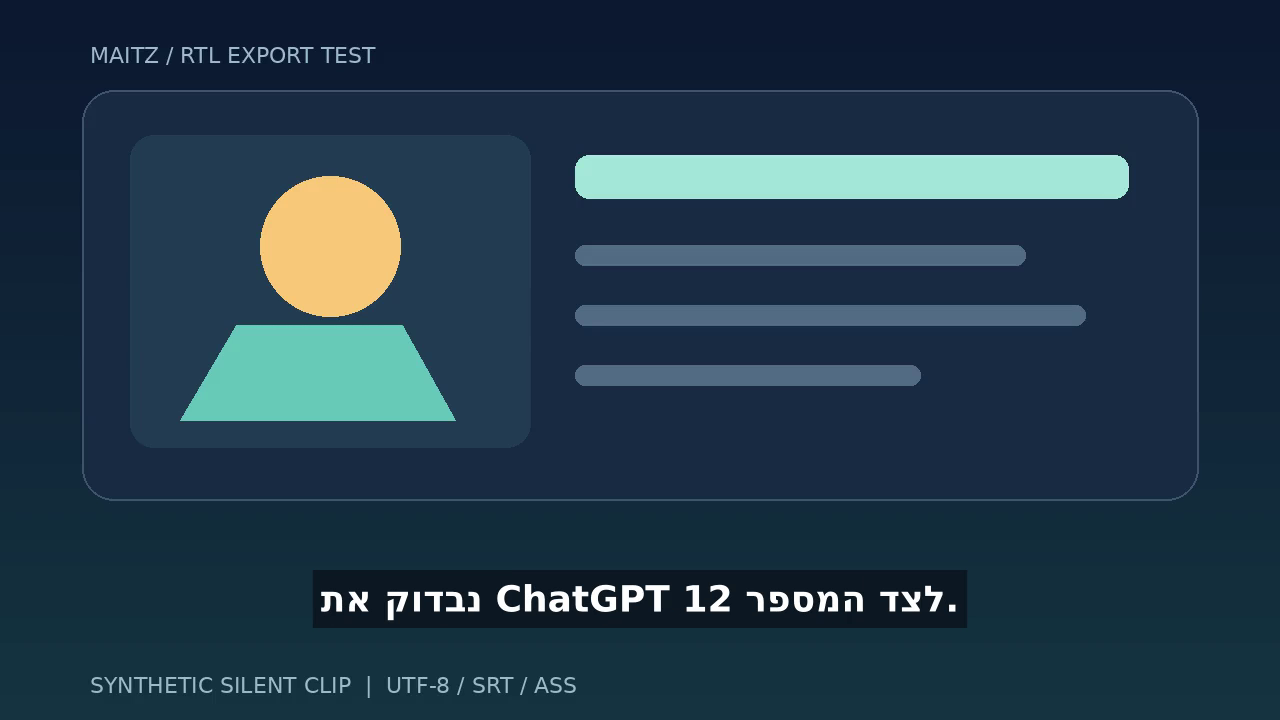
We changed Encoding in the ASS style to -1 and exported again. Visual inspection of all four segments showed improved sentence ordering, including the English, time, and price. We did not reverse the source text or change the caption timestamps.
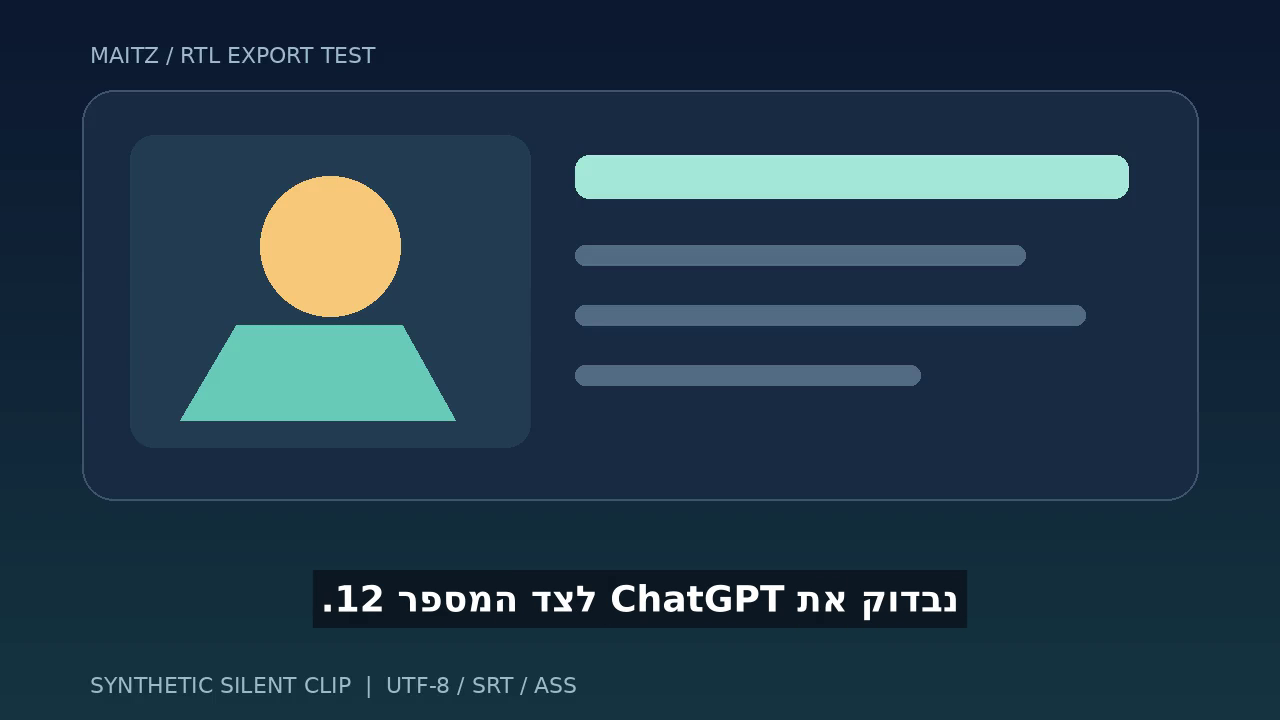
Important: this is a libass-specific solution, not a CapCut setting or a rule for every editor. The libass documentation explains that this value enables automatic text-direction detection and is not portable across all subtitle renderers. The exercise’s ASS file is therefore intended for the locally tested burn-in workflow. Keep a standard SRT file for use in other editors.
Advanced option: reproduce the burn-in
Download the practice kit and extract it to a folder. It includes a silent source video, an SRT file, a configured ASS file, the resulting MP4, and before-and-after images. If you already have FFmpeg installed with libass support and the DejaVu Sans font available, open a terminal in that folder and run:
ffmpeg -i synthetic-input.mp4 -vf "ass=hebrew-demo.ass" -c:v libx264 -crf 18 -pix_fmt yuv420p -an my-burned-demo.mp4
The command was retested with the exercise files. It creates a new file; the -an option suits this silent exercise and removes audio. Do not copy it unchanged for a video with speech. For a real video, you must also preserve or encode the audio track and check it. The FFmpeg ASS filter documentation is the starting point for filter details.
The local test confirmed 12-second H.264 output with 300 frames and a single video track. The captions are visible in frames extracted from the output, with no separate subtitle track. This tested text burn-in and display times; there is no audio, so synchronization with speech was not tested.
Pre-publication checklist
- Listen to the entire video and compare the captions with the speech, especially negations and names.
- Make sure each caption appears at the right time and stays long enough to read.
- Check English, numbers, times, parentheses, and currency symbols in the exported file.
- Check on a small screen for cropping and for text obscuring faces or important information.
- Open the MP4 in another player, not just the editor’s preview.
- Check that the audio was preserved and that an additional track is not producing duplicate captions.
- Save a clean source, corrected SRT, and project file before publishing.
Frequently asked questions
Can I publish automatic captions without proofreading?
You can get a draft, but you should not publish it without checking against the audio. Particularly in a professional video, an error in a name, number, or negation changes the content even when everything else looks correct.
Does right alignment fix reversed right-to-left text?
Alignment controls where the text box sits. Text direction controls how its contents are ordered. Start by checking the source, encoding, and font, then examine the editor’s rendering capabilities. Moving the box alone may not solve the problem.
Why not import the corrected ASS file into every application?
Our file uses a libass extension. Use the SRT in other editors and recheck styling and text direction. Once captions have been burned in correctly, their appearance is already part of the video image.
What should I do when a caption is too long?
Split it at a meaningful phrase, keep names and numbers together, and check reading time against the audio. Do not shorten wording in a way that changes the message just to fit it onto one line.
Further sources
- CapCut: Importing external subtitles
- ElevenLabs: Transcription and supported languages
- FFmpeg: Subtitle filter
- libass: The Encoding=-1 extension and compatibility limitations

