This guide is based on official documentation checked on October 4, 2026. Neither the Magic Resize exercise nor its manual alternative was run, and the three sample versions were not created or exported. Live account access to Resize and its results were not verified.
For current plans, prices and every Maitz article on Canva and Gamma, see our Canva and Gamma hub.
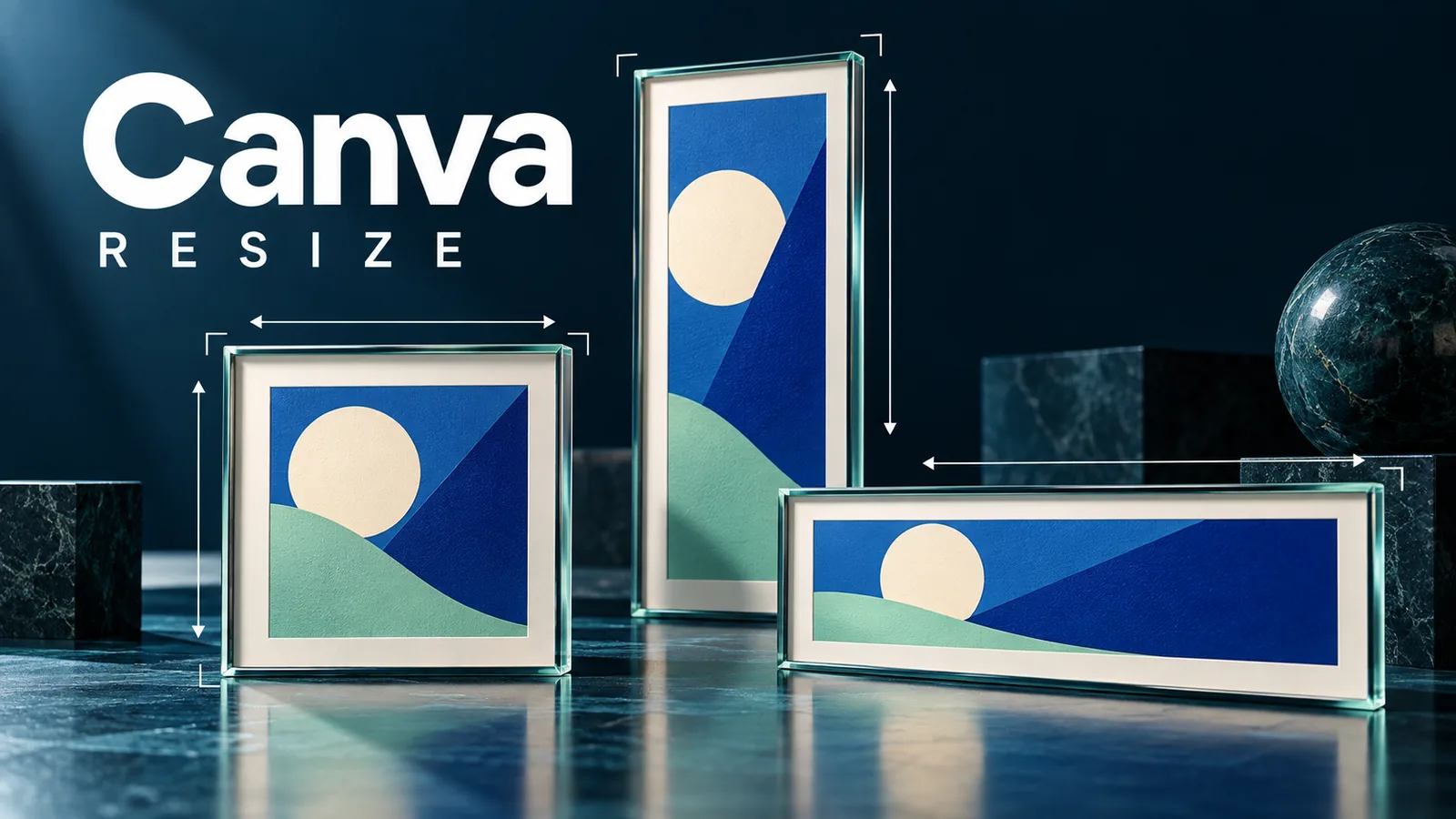
A square post, vertical story and wide banner give the same message different amounts of space. This exercise adapts one fictional Cedar Studio invitation into three layouts. After changing the canvas size, check whether the headline leads, the event details survive and the next step remains clear.
Prepare the source design
Use this approved practice copy: “Write a Clear Social Post”; “A practice session for small-business owners”; “November 18, 2026, 6:30 p.m. Eastern Time, on Zoom”; “Message us with the word Details.” There is no registration URL or promise of business results. Use a pale background, dark text and two simple rectangles suggesting sheets of paper.
Our practice dimensions, written width first, are 1080×1080 pixels for the post, 1080×1920 for the story and 1200×400 for the banner. These are exercise choices, not official platform specifications or limits. Before publishing, check the destination’s current dimensions, cropping behavior and file requirements.
Build the square first and name it “Cedar square master.” Give the heading, description, event details and action separate text boxes. Record the colors and font. Establish a clear reading order before making variations; otherwise, each copy will inherit an unresolved layout.
Use Magic Resize if available
Magic Resize is available on eligible Pro, Business, Enterprise, Education, Higher Education, Nonprofits and Teams plans. Each use counts toward the monthly AI allowance. Check access and remaining usage before starting repeated attempts.
- From the editor, choose Resize. Select a suggested format or Custom size and enter the destination width and height in pixels.
- Under All pages, select the source page you want to adapt. Check the selection before continuing.
- Choose Copy & resize to preserve the original. Create the vertical and wide copies, then give each a name containing its dimensions.
Open each copy at a readable size. A thumbnail can hide a clipped date or tiny call to action. Confirm that the master remains available and that you are editing the intended version.
Build the sizes manually on Free
From the homepage, choose Custom size, set Units to px, enter the dimensions and select Create new design. Make separate blank designs for the story and banner. Copy the source elements into each and rearrange them. Set the background separately if needed. Use free elements or your own permitted assets.
Recompose each layout
For the square, keep a prominent heading near the top, the simple illustration in the middle and event details below. Separate the date from the action so the two do not compete. Leave enough empty space for the groups to be distinguishable.
For the story, use the extra height for three areas: heading, illustration, then details and action. Keep essential content away from edges and possible app controls. Inspect the destination’s current safe areas rather than applying one universal pixel margin. Extra height does not require extra copy.
For the English banner, place the text group on the left and the illustration on the right. Shorten the description to “Practice for small-business owners” if necessary. Preserve the date, time zone, location and action. Avoid shrinking the entire square to fit the strip.
If you replace the rectangles with an image you own, inspect its crop in every format. Keep its important subject visible and preserve object proportions. A wide crop may need a different focal point from the vertical version.
Check and deliver the files
Compare all three versions with the approved copy. Check for overlap, cropped text and readability at a small display size. Make sure the action suits the publishing destination: a button-shaped graphic inside an image is not automatically clickable.
For a long heading, try a better line break or shorter wording before reducing the font. For cramped imagery, change the crop or remove decoration. If Resize is unavailable or your allowance is exhausted, use the manual route.
Choose Share, then Download, and select an appropriate format, such as PNG for this static exercise. Confirm the pages and settings. Open the saved files and check dimensions, sharpness and reading order. Clear names such as “Cedar story 1080×1920” help prevent delivery of the wrong version.
Related reading: our Canva import and export review.

