To summarize a Gmail thread with Gemini reliably, separate the current decision from the history before asking for a reply. A readable summary can still preserve an old deadline, turn an estimate into a price, or accept an extra task nobody approved. This guide gives you a small practice thread, two copyable prompts and an answer key for checking those mistakes.
For current plans, prices and every Maitz article on Gemini, see our Gemini hub.
Documentation checked October 4, 2026. This is a documentation-based workflow with an original fictional exercise. The answer key and sample reply are editorial reference answers, not outputs from a live Gemini test. We did not access a private inbox or send email.
Download the fictional thread, prompts and answer key (ZIP).
First, check which Gmail AI experience you have
This guide is for adults aged 18+ and focuses on the desktop Ask Gemini panel. Eligible personal plans include Google AI Plus, Pro and Ultra; eligible Workspace editions include Business Starter. Work and school access also depends on the organization and edition. Check Google’s current plan table. US Pro and Ultra subscribers may no longer see the panel as Google moves them to in-line experiences.
English is supported in the side panel, Help me write and AI Overview conversation summaries. Other languages vary by feature: some are listed for the side panel but not for the latter two. Check language support for the specific feature; a plan subscription does not guarantee every language, feature or interface.
The dedicated thread-summary documentation says summaries are available to all Gmail users globally in supported languages, while the general overview still describes US-only unpaid access. Follow the feature-specific instructions and check the actual account. Help me write separately lists eligible plans globally and ordinary personal accounts in the US. Neither promise establishes free side-panel access.
Summarizing and drafting require Smart features in Google Workspace. Conversation-summary cards also require Smart features in Gmail, Chat and Meet. Smart features in other Google products is a separate setting. Read what each control permits before changing it. Mobile uses a different layout; this walkthrough does not establish mobile feature parity.
Use this three-email practice thread
All names, messages and project details below are invented. The dates are deliberately explicit and use UTC so that checking the exercise does not require guessing a time zone. Read it once without AI. Identify the latest deadline, the person responsible and what remains undecided.
E1 — October 12, 2026, 09:00 UTC — Maya to Noam and Lior
Please prepare a three-page brochure PDF. Noam will own the file. Send it by October 13 at 16:00 UTC for our review on October 16 at 14:00 UTC. USD 600 is an initial estimate only; spending is not approved.
E2 — October 12, 2026, 11:00 UTC — Noam to Maya and Lior
Lior has agreed to take over the PDF from me. Could we move the review to October 19 at 14:00 UTC? Could we also add a landing-page banner? That extra item needs a separate decision.
E3 — October 12, 2026, 15:00 UTC — Maya to Noam and Lior
Confirmed: the review moves to October 19 at 14:00 UTC, replacing October 16. Lior’s PDF deadline is now October 15 at 12:00 UTC, replacing October 13. Scope remains the three-page PDF only. The banner is undecided. USD 600 remains an estimate, with no spending approval. Please acknowledge the updated plan.
For an optional product trial, paste only this fictional text after the summary prompt below in an eligible side panel. That checks a supplied-text exercise, not Gmail’s retrieval of a real thread. Do not create or send fake emails just to reproduce it.
Ask for the current state before drafting
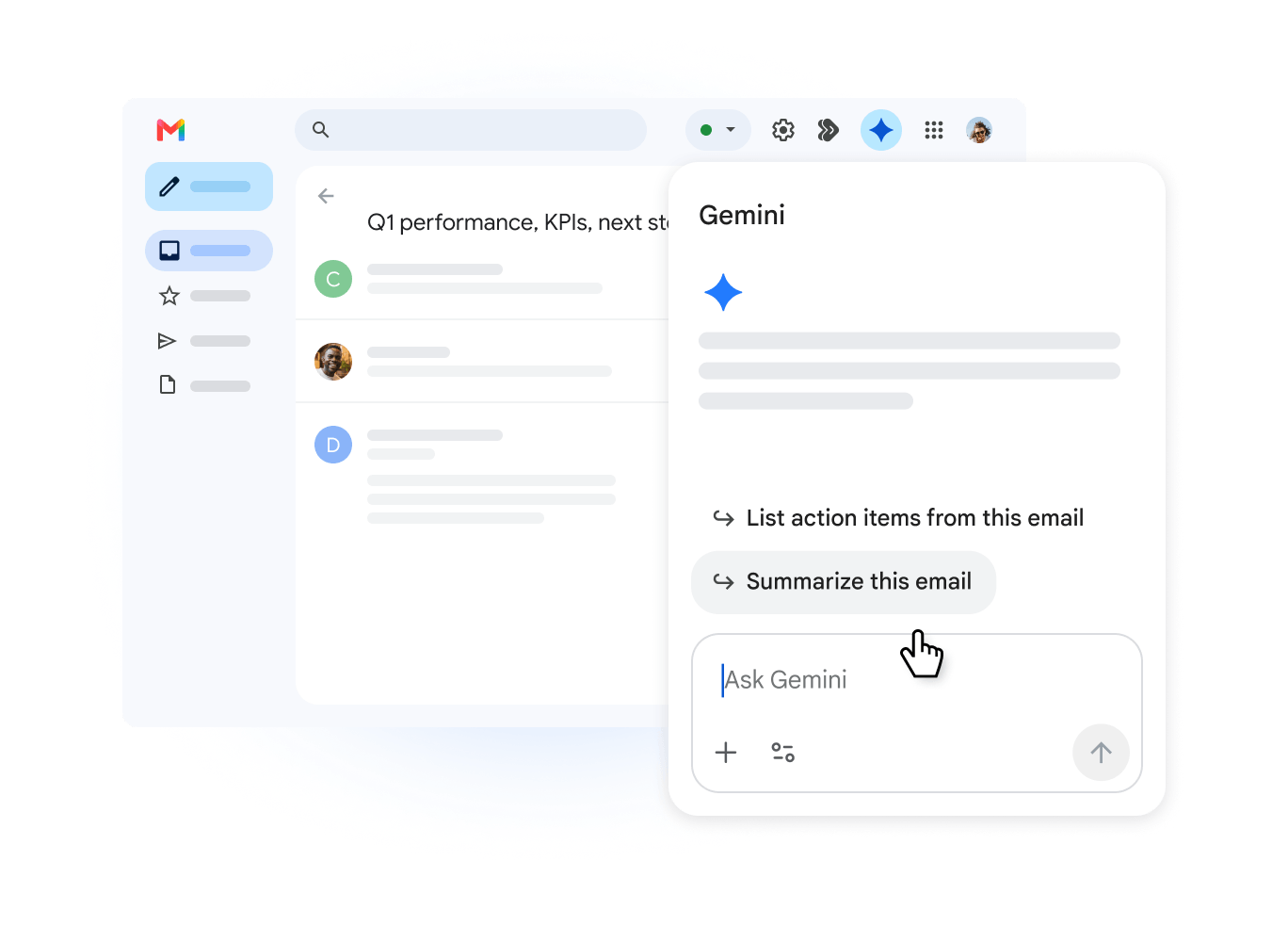
On a computer, open the intended thread in Gmail and select Ask Gemini at the top right, when offered. The panel can summarize messages and draft replies. Identify the thread by subject. This guide uses a reading-and-drafting workflow; the product also supports other actions, so do not approve an unexpected action card.
Our suggested prompt adds an evidence check to that workflow:
List the current deliverable, owner, file deadline and review time. Show superseded dates separately. Separate confirmed decisions, estimates and unresolved requests. For every item, name the supporting message and sender; flag contradictions or missing evidence.
Do not infer approval, promise a delivery, create a task or event, or send anything. Return a short factual summary first, not a reply.
For a real thread, remove the practice sentence. Expand older messages yourself when checking the result; the latest email may refer to earlier constraints. “Latest” also does not automatically mean “authorized”: a later suggestion from a participant can remain unaccepted. In this exercise, E3 explicitly confirms the changes.
Compare the result with this answer key
- Deliverable: three-page brochure PDF only. E1 establishes it; E3 preserves that scope.
- Owner: Lior, replacing Noam. E2 records the handover; E3 confirms Lior’s deadline.
- File deadline: October 15, 2026, 12:00 UTC. E3 replaces October 13, 16:00 UTC.
- Review: October 19, 2026, 14:00 UTC. E3 replaces October 16, 14:00 UTC.
- Money: USD 600 is an estimate. There is no spending approval.
- Banner: requested in E2, still undecided in E3. It is not an agreed deliverable.
A summary that lists both dates without saying which one applies fails the exercise. So does “Lior will deliver the PDF and banner for USD 600.” That sentence bundles one current responsibility with two unsupported commitments. The reference answer above checks content; it does not establish a Gemini accuracy rate.
Draft a reply from the checked facts
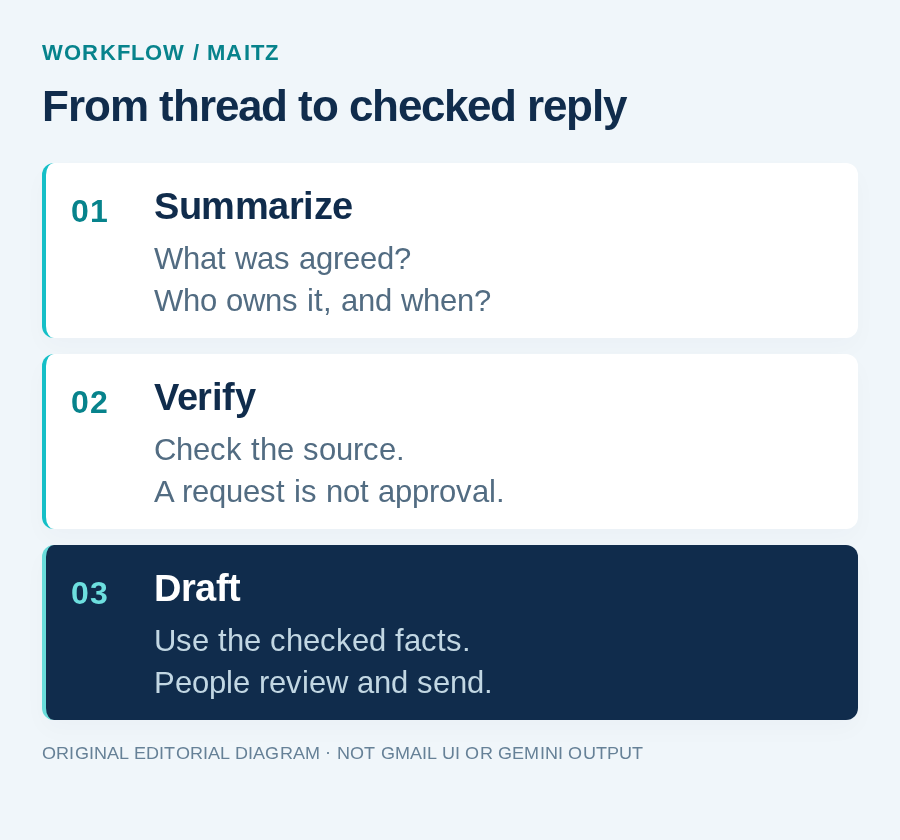
Correct the summary first. Then specify the sender, recipient and purpose. Here Noam is acknowledging Maya’s update, not accepting new work on Lior’s behalf.
Editorial reference reply:
Thanks for the update. I understand that Lior owns the three-page PDF, due October 15 at 12:00 UTC, and the review is October 19 at 14:00 UTC. The banner remains undecided, and USD 600 is still an estimate without spending approval.
Noam
Copy reviewed text into the correct reply field only when you intend to prepare that email. Check To and Cc separately; a prompt naming people is not a recipient check. Sending remains a separate decision.
Check sources and privacy separately
Inspect the Sources list and open the original messages. Google warns that references may be incomplete or wrong and that large inputs can exceed processing capacity. Earlier conversation sources can remain relevant. Start fresh when changing scope and check the source settings. “Use only this thread” is an instruction about the answer, not a technical access restriction.
For Google AI plan users, Google says native Gemini in Workspace does not use Workspace content to train or improve generative AI models. Sharing that data with the separate Gemini app, Search or screen actions invokes those products’ policies. Read the native Workspace privacy commitments rather than assuming that nothing is retained or reviewed.
Workspace Experiments has separate terms that allow model improvement and human review. Do not enroll simply to make a missing button appear. Organizational accounts have separate contractual and administrator-controlled retention rules. Check the account’s applicable terms and your organization’s permission before using client information.
Use the in-line route when that is your interface
If Ask Gemini is absent, check the account and feature controls; a work administrator may need to help. Do not upgrade merely to follow this exercise. For an existing thread you are authorized to use:
- When offered, select Summarize this email above the thread. Check the resulting card against the messages, using the same decision checks as our answer key.
- Click Reply. In the compose window, use the prompt bar, or select Help me write if that bar is absent, then Create. Supply your verified facts together with the reply instruction. Do not assume it has the side panel’s conversation.
- Review the text and its sources before using it. If neither tool is offered, complete the fictional exercise manually; no inbox setup is needed.
Before sending: verify the latest accepted dates, time zone, owner, recipient list, scope, amounts and any attachment claim. Delete every sentence whose evidence you cannot locate. A useful reply acknowledges what was agreed and leaves unresolved decisions open.
For a related exercise in checking scope and unapproved costs, see our guide to drafting a price quote with AI.
Gmail and Gemini are trademarks of Google LLC. This independent Maitz guide is not affiliated with, sponsored by or endorsed by Google.
Official sources
- Plans and account eligibility
- Feature language support
- Ask Gemini desktop workflow
- Conversation summaries
- Help me write
- Smart-feature controls
- Sources and their limitations
- Native Workspace privacy
- Workspace Experiments terms
- Organizational Workspace Privacy Hub
- Feature overview and rollout
- Google product illustration

