Updated: October 3, 2026
In short
- Before anything else, check the official status page. If there’s a service outage, no button in the app will help, and some buttons will only make things worse.
- Always start with the gentlest step: retry, quit the app completely and reopen it. Reset on the computer is always the last step.
- A bot that’s “stuck” is usually waiting for you: for an approval, a sign-in, a CAPTCHA or an answer. Open its computer and see what it’s looking at.
Even a good tool gets stuck sometimes. In Grok Bot, the agent app from SpaceXAI, most problems come from one of three places: the account, the cloud computer the bots work on, or the task itself. We’ve gathered eight problems that come up repeatedly in the official help, each with the recommended order of steps. Haven’t installed it yet? Start with How to download and install Grok Bot.
For current plans, prices and every Maitz article on Grok Bot, see our Grok Bot hub.
What should you check first?
| Problem | First step | What not to do |
|---|---|---|
| Sign-in doesn’t finish | Update, sign out and sign back in | Reinstall as a first step |
| Bot doesn’t respond | Check the status page | Reset during a service outage |
| Computer won’t start | Retry, then quit and reopen | Reset before Update and Recover |
| Bot is stuck | Open its computer | Send a password in the chat |
| File isn’t read | Check size, count and encryption | Remove protection against policy |
| Allowance used up | Wait for the weekly reset or turn on on-demand | Assume the bot is broken |
| Connection not working | Authorize again | Leave a broken connection “for later” |
| Routine doesn’t run | Check Paused and When to run | Click Test with real input |
1. Why won’t sign-in to Grok Bot finish?
Grok Bot has no separate user account: you sign in with your Cursor account. If sign-in gets stuck in a loop, the help page recommends this order:
- Update the app to the latest version, sign out and sign back in.
- Clear cookies and cache for cursor.com and x.ai in your browser, and try in a private window.
- On desktop, also try signing in through the Grok Bot website with the same account.
- If the problem is new, wait 30 to 60 minutes. Some errors go away when the connection refreshes.
Reinstalling usually doesn’t help. On the phone, if there’s a loop, sign in on desktop first. In an organization with SSO, sign in through the company login, not with a personal account.
2. The bot isn’t responding. Is the service down?
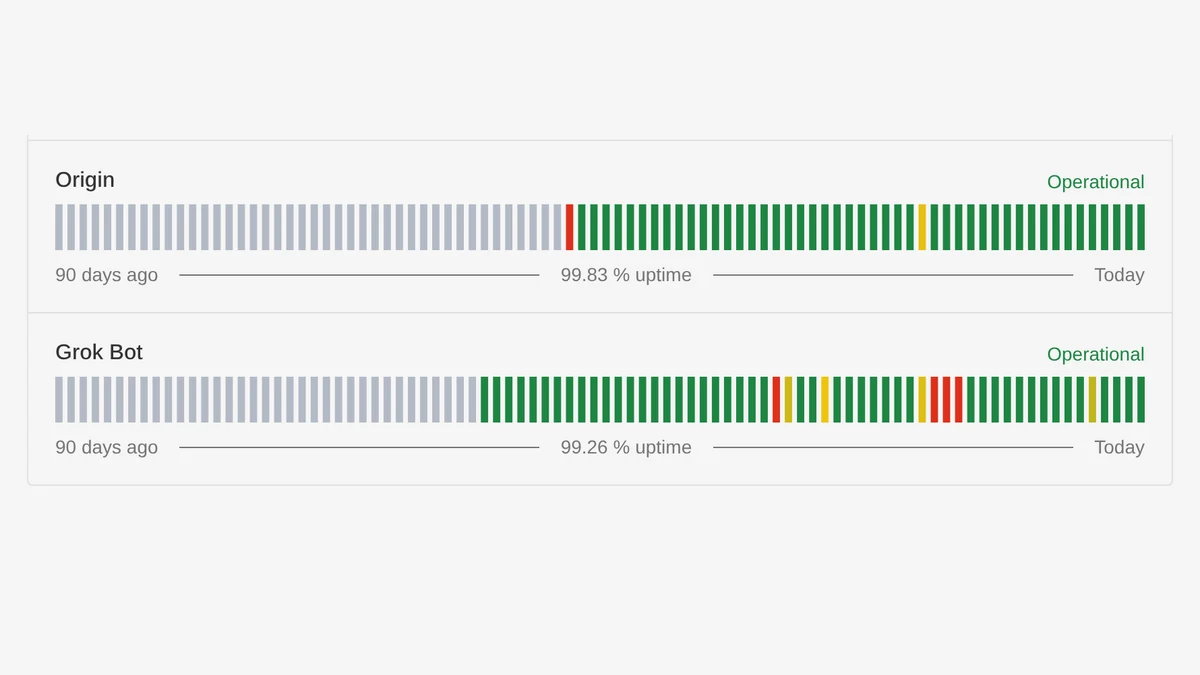
The app itself doesn’t show the service status. You check that on Cursor’s status page, in the Grok Bot row. If there’s an incident there, wait for it to be resolved and send your message again. Don’t Reset and don’t reinstall, because that doesn’t fix a service outage, and Reset may wipe recent changes.
If there’s no incident and the bot says Bot failed to respond or Model provider is overloaded, wait a moment and send again. If it keeps happening, quit the app completely and reopen it.
3. What do you do when the cloud computer won’t start?
If you see Starting your computer or Updating your computer and the progress is still moving, wait. The first setup and updates can take a few minutes. If you see Reconnecting or Couldn’t Reach Grok Bot’s Computer, the order is:
- Retry. Bots, files and logins aren’t deleted while reconnecting.
- Quit the app completely and open it again. On a Mac, choose Quit, don’t just close the window.
- Update under Grok Bot’s Computer, in Settings → Updates. On the phone: Settings → Bot → Bot Computer.
- Recover, if it’s offered and there’s still no connection.
- Reset, only at the end.
Recover and Update keep files and logins. Reset goes back to the last backup and may lose recent work. Even during a slow update, the advice is to wait, not to start another update or Reset.
4. Why is the bot “stuck”?
In most cases it’s waiting for something. Open its computer and check whether there’s a question, an approval request, a sign-in screen, a CAPTCHA or a password prompt. If it’s heading the wrong way, send a short message with a new direction. If you need to stop it, write “Stop now.”
A site that keeps asking you to sign in? Go into the bot’s computer yourself, complete two-factor authentication, and tell the bot to continue from the current page. Don’t write passwords or verification codes in the chat. If a site blocks the bot, you can turn on Route traffic through this computer under Settings → Computer, so the site sees your connection.
To understand where the task stands, you can ask for a status report:
Pause for a moment and tell me in three lines: what stage you're at, what you're waiting for, and what you need from me.
Don't continue until I reply.
5. Why won’t the bot read the file I attached?
According to the documentation, there are three main reasons: a document, image or audio file larger than 25MB (or a video over 200MB), more than six files at once on desktop, or a file that’s encrypted or password-protected. For an unusual file format, try exporting it to PDF, CSV, text or an image.
6. “I’ve hit the limit.” Is the bot broken?
No. Your weekly allowance has run out, and it resets every week. To continue right away, you can turn on on-demand usage or move to a bigger plan. You can see your usage in the app under Settings → Usage & Billing, not in the Grok app. Routines that run frequently are a common reason the allowance runs out fast. Plan details are in How much does Grok Bot cost.
7. Why did a connection like Gmail stop working?
Open the Marketplace in the sidebar, go to Your plugins and check that the plugin appears under Installed. If it’s marked as needing sign-in, choose Authorize and complete it in the browser with the right account. If access was revoked in the service itself, remove the plugin and add it again. Full details are in our guide to connecting Gmail, Google Calendar and Drive.
8. Why didn’t the routine run?
Check that it isn’t marked Paused, that When to run shows the right time and time zone, that its bot still exists and that the connections it needs are connected. A new routine waits for its next scheduled time and doesn’t run right away. In Run history you can also see the reason for each failed run. And if an approval from a routine “expired,” that’s expected: approvals from work that started without you expire after about ten minutes. Turn on notifications for the bot. More in our routines guide.
And three more small problems
- Bots or conversations disappeared. Usually they weren’t deleted. Quit and reopen, check Hidden Bots and make sure you’re on the same Cursor account. Don’t use Recover or Reset to look for them.
- Update required. The app requires an update when your version is more than 14 days old and a newer version is available.
- Not enough disk space. The warning refers to the cloud computer, not your own computer. Disk Saver checks what’s taking up space and suggests what to clean up, and doesn’t delete anything without approval.
What should you prepare before contacting support?
The app version, operating system, the exact error message, the name of the bot or routine, an approximate time with time zone, and what you’ve already tried. You can copy a request ID by right-clicking the message and choosing Copy request ID. Never send passwords, codes or keys to anyone.
How did we test?
We didn’t force these problems, and we didn’t trigger Recover or Reset, because those are real actions on the account. The order and the names come from the official help. Two things we did test in practice: we attached a regular PDF, and it was read, and the same file with a password, and it failed, as the documentation describes. We also ran the status-report prompt (in a right-to-left language). In the first version, the bot wrote a report and kept working, so we added “don’t continue until I reply.”
FAQ
Will Reset delete my conversations?
No. Conversations are stored outside the cloud computer. Reset may, however, lose files and recent changes on the computer itself.
I closed the app. Did the bot stop working?
No. The work continues in the cloud even when the app is closed or disconnected.
My SuperGrok usage doesn’t match what I see in Grok Bot. Why?
They’re two separate meters for two products. Grok Bot usage is measured in your Cursor account.
Will reinstalling fix the problem?
In most cases, no. According to the help, reinstalling usually doesn’t fix sign-in errors or a service outage. What is worth doing is updating: under Settings → Updates, choose Check for Updates. Updating the app doesn’t reset the cloud computer, because the two have separate updates.
The bot replies in a different language than I expected. Is that a bug?
Not necessarily. A new bot writes in the interface language, unless you write to it in another language. We explain this in our language support guide.
Sources
- Grok Bot Docs: Troubleshooting
- Cursor Help: Grok Bot FAQs
- Cursor Help: Sign in to Grok Bot
- Cursor Help: Grok Bot computer
- Cursor Help: Grok Bot How Tos
- Cursor Help: Grok Bot Routines
- Cursor Status
The capabilities mentioned here were checked against the official documentation on October 3, 2026.

