A Grok Bot routine tells a bot when to do a task: at a fixed time, or when something happens, such as a Slack message or a webhook call. It runs on the cloud computer, so your laptop can stay off. Run the task once by hand, save it as a skill, then ask the bot to schedule it.
For current plans, prices and every Maitz article on Grok Bot, see our Grok Bot hub.
In short
- A routine sets when a particular bot does a piece of work: at a fixed time, or when something happens, like a Slack message or a webhook call. It runs on the cloud computer, so your laptop can stay off.
- You create a routine simply by asking in the chat. Before that, it’s worth running the same task once by hand and saving it as a skill.
- A new routine doesn’t run the moment it’s created. It waits for its next scheduled time. The Test button runs it right away, and does real work.
In Grok Bot, the agent app from SpaceXAI, you can give a bot a recurring task and stop thinking about it: a summary of requests every morning, a daily price comparison, a weekly report on Monday. The tool for that is called a routine. In this guide we explain how to get to a routine you can trust, and show a prompt we ran ourselves. If this is your first bot, start with the first bot guide.
What’s the difference between a skill and a routine?
The two terms appear together in the documentation, and they complement each other:
| Skill | Routine | |
|---|---|---|
| What it defines | How to do a task | When a particular bot does it |
| Who it belongs to | One library shared by all your bots | One bot, which owns it |
| How you create it | Ask the bot to save the process as a skill | Ask the bot in the chat, with a time or an event |
| How it runs | Type / in the message box and choose it |
On its own, according to the schedule or event |
| Uses allowance | Only when you use it | On every run, including test runs |
The order the documentation recommends is simple: first a one-off task, then a skill, and only at the end a routine.
How do you prepare a task that suits a routine?
Step 1: Run the task once yourself
Before you schedule anything, you need to see it work while you’re watching. This is the prompt we ran in testing (in a right-to-left language; English version shown), on two made-up price files:
The prices folder has a CSV file for each day, named by date (for example 2026-10-03.csv).
Compare today's file with yesterday's and build a table: product, supplier, yesterday's price, today's price, change in amount and in percent.
Show only rows that changed, followed by rows with no change.
If a row has no price, mark it "missing" and don't compare it.
If today's file doesn't exist, say it's missing and don't use old data.
Don't send the table to anyone and don't change the files.
Step 2: Save the process as a skill
Once the result is good, ask the bot to save the method as a skill. According to the documentation, a good skill defines when to use it, what it needs in order to work, the order of steps, how to check the result, what to return and what needs approval:
Save the process we just did as a skill called "Daily price comparison".
Include: where the files come from, the table structure, what to do when a price or file is missing, and the rule that the result must not be sent without my approval.
Private skills are shared by all your bots. If a skill doesn’t appear after typing /, the documentation points you to the Marketplace, then Your plugins, then Manage plugins and skills, to check that it’s on the Private skills list.
How do you create the routine itself?
Write to the bot that should own the work, in plain words, what to do and when:
Monday to Friday at 08:00, run the "Daily price comparison" skill on the prices folder.
Show the table in this conversation only.
If today's file is missing, report it and don't use yesterday's data.
Don't send or publish anything without my approval.
The bot creates the routine and shows when it will next run. Before you continue, the documentation recommends confirming six points: which bot owns it, the schedule and time zone, where the information comes from, the expected result, where it stops for approval, and what happens when a source is missing.
Why name the days instead of writing “weekdays”?
The examples in the documentation use “every weekday.” But the working week isn’t the same everywhere; in some countries it starts on Sunday. To avoid any guessing, write the days explicitly. Then open the routine and check the When to run field, which shows the saved schedule in words. If it doesn’t match, choose Edit and fix it.
Which time zone does the routine use?
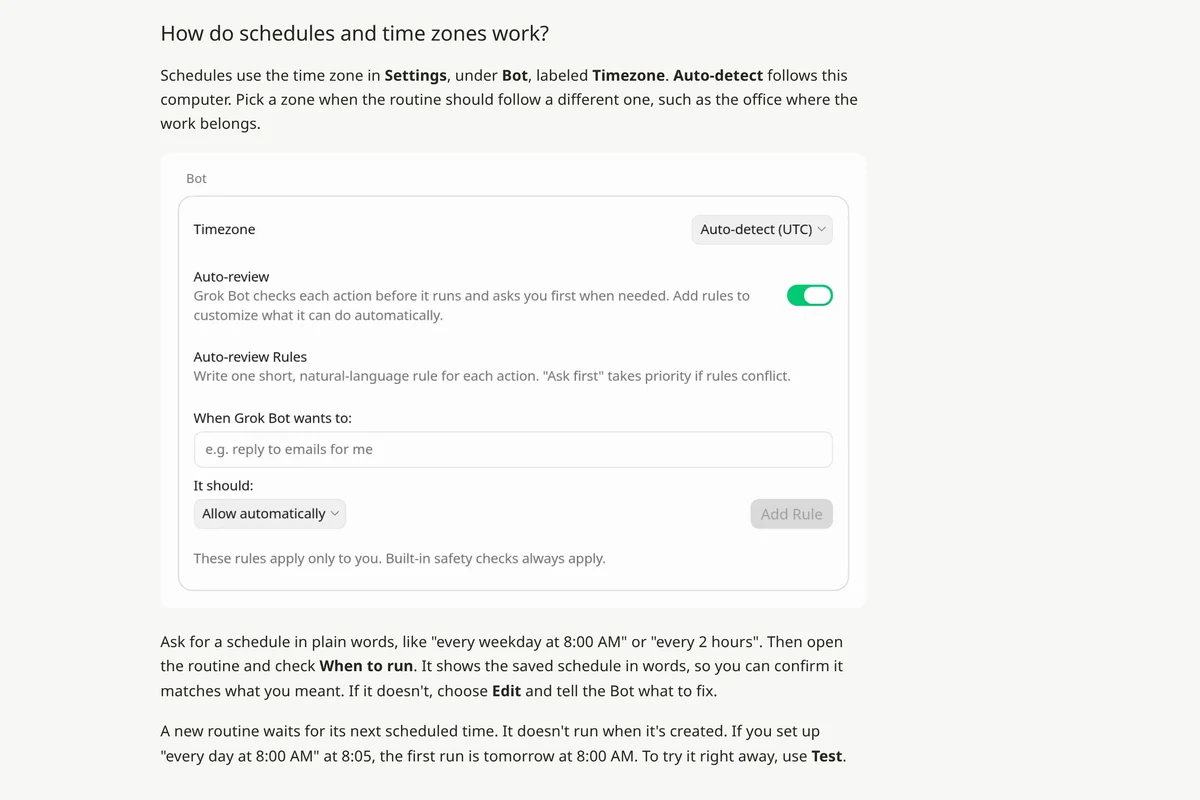
Routines follow the Timezone field in Settings, in the Bot section. The default is Auto-detect, which uses your computer’s time zone. If the work belongs to an office in another country, you can choose a different time zone there.
Why doesn’t the routine run right away?
Because a new routine waits for its next scheduled time. According to the help page, if you created an “every day at 8” routine at 8:05, the first run will only be the next day. To see a result now, open the routine on desktop and choose Test. The button shows Running… until the run finishes, and the result appears in the bot’s chat.
Keep in mind: a test run is real work. It can change files, browse websites and use connections. So test with safe input, and any action that writes outward should go through approval. After the test, check that the bot used up-to-date information, that the format is right, that it stopped where it should, and that failures are reported clearly.
Where do you manage routines?
On desktop: click the bot’s name at the top of the chat, choose Tasks, and the routines appear under Routines. Each row has a toggle to pause and resume. Inside a routine you’ll see Instruction, When to run, and for a webhook-triggered routine also Webhook. At the bottom are Pause or Resume, Test, Edit and Delete routine.
On the phone: in the bot’s profile, under Routines, you can see Active, the schedule, the next run, the instruction and Run history. You can pause and delete. To edit or run a test, you currently need the desktop app.
A few numbers from the documentation: each bot can have up to 50 routines, and the last 20 runs are kept for each routine. Deletion is immediate and can’t be undone, and deleting a bot also deletes all its routines. If you haven’t opened the app for a long time, you may be asked whether to keep running your routines, and if you don’t answer, they’ll be paused.
Can a routine start from an event instead of a time?
Yes. According to the help page, a routine can start from a Slack message, an event in GitHub, Linear, Sentry or PagerDuty, an email or a webhook call. For a Slack trigger you can set a mention of the bot, a word or phrase, your reaction to a message, or any message, in one channel or across all of Slack. The trigger is separate from the Slack plugin, and uses the Slack connection of the Cursor account the bot belongs to.
With a webhook, a 200 response only means the run started, not that it finished. You see the result in the bot’s chat.
The recurring advice in the documentation: set a narrow trigger. “Every message in a busy channel” runs the bot again and again, uses up allowance and increases the chance it reacts to something irrelevant.
How much do routines cost?
Every run uses allowance from your subscription, and a Test run counts too. According to the help page, an hourly routine, a short interval or a trigger on a busy Slack channel can use up a week’s allowance within a day. If your weekly allowance drops quickly, pause routines you don’t need, and ask the bot to widen the intervals and narrow the triggers before upgrading your plan. Plan details are in How much does Grok Bot cost.
Why didn’t the routine run at all?
This is the checklist from the documentation:
- The routine isn’t marked Paused, and on the phone Active is on.
- When to run shows the right schedule or trigger, in the right time zone.
- The bot that owns it still exists.
- The connections the routine needs are still connected.
- The cloud computer can reach the information source.
- Usage or account access hasn’t been paused.
In Run history, each run is marked Running, Succeeded or Failed, and a failed run shows the reason. More common problems are in Grok Bot not working?.
How did we test?
We ran the step 1 prompt in Grok Bot, in a right-to-left language, on two made-up CSV files of office supply prices (in the sample file’s currency). On the first run, the bot correctly identified a drop of 30 and a rise of 1.40 (sample-file currency), and a row with no price was marked “missing” and left out of the calculation. The first version of the prompt had no rule for a row without a price, so we added one. On the second run we deleted today’s file, and the bot reported that the file was missing and didn’t use old data.
We didn’t actually create the skill or the routine, so as not to leave a real automation in the account. We checked those two prompts only as text, against the documentation’s guidelines. Based on the review, we replaced a vague “weekdays” with explicit days.
FAQ
Does a routine run even when my computer is off?
Yes. Routines run on the cloud computer and don’t depend on your laptop.
Can I create a routine from my phone?
The bot’s profile has Add routine, which opens a message to the bot starting with “Set up a routine to.” Editing and testing an existing routine currently require the desktop app.
What happens to routines if I hide a bot?
They keep running. Hiding only removes the bot from the list. Deleting a bot, on the other hand, also deletes its routines.
Can a Team Bot run a routine for the whole team?
No. According to the documentation, a routine belongs to whoever set it up and runs only for them. For the whole team to see a result, the routine needs to post it somewhere shared.
Can I write routines in a language other than English?
Yes. We tested writing in a language other than English; see our language support guide. We keep interface terms like When to run in English so they’re easy to find.
Need routine ideas? See 20 Grok Bot prompts, which includes routine-ready examples.
Sources
- Grok Bot Docs: Skills and routines
- Grok Bot Docs: Settings and notifications
- Grok Bot Docs: Grok Bot on mobile
- Grok Bot Docs: Troubleshooting
- Grok Bot Docs: Team Bots
- Cursor Help: Grok Bot Routines
The capabilities mentioned here were checked against the official documentation on October 3, 2026.

