
These 20 Grok Bot prompts cover seven kinds of use: work, email and messages, research, routines, home, content and files. Each one states what the bot should return, what to work from and what it must not do without your approval, so results are easy to check. Start with a prompt that needs only an attached file.
For current plans, prices and every Maitz article on Grok Bot, see our Grok Bot hub.
In short
- Here are 20 ready-to-copy Grok Bot prompts, grouped into seven kinds of use: work, email and messages, research, routines, home, content and files.
- Every prompt says what the bot should return, what to work from and what it must not do without your approval. That makes the result easy to check, and nothing goes out by mistake.
- Start with a prompt that needs no connections (attaching a file is enough). Only once the result is good, save it as a skill or give it a routine.
Grok Bot, the agent app from SpaceXAI, is different from a regular chat: the bots work on a cloud computer and use the tools you’ve connected. So a request should define a task with a clear end point, not just ask a question. If you’re new, start with What is Grok Bot, and if you haven’t installed it yet, see the installation guide.
A note on testing: we wrote and tested these prompts in a right-to-left language. The English versions below are adapted translations, with placeholders made more generic. We haven’t re-run the English wording.
Before you copy: what should you know?
- Anything in square brackets gets replaced with your own details.
- A prompt that works with an outside service needs access to it. You install connections from the Marketplace in the sidebar, and attach them to a task in the chat with @. If a service has no connection, you can sign in to it in the bot’s browser. When a password or code is needed, take over the computer and type it yourself rather than pasting it into the chat.
- You can attach up to six files per message. A document, image or audio file can be up to 25MB each, and a video up to 200MB.
- Every task counts toward your weekly allowance. See How much does Grok Bot cost.
Which prompts work well for work?
1. From meeting recording to task list
When to use it: after a team meeting.
I've attached a recording or transcript of today's team meeting.
Write a summary of up to 8 lines, followed by a table with the columns: task, owner, due date, source (the minute in the recording or transcript).
If no owner or date was set, write "not set" and don't fill it in yourself.
Return everything here in the chat. Don't send the summary to anyone.
2. Comparing supplier quotes
When to use it: when you have several quotes in different formats.
I've attached [3] quotes for [office cleaning services].
Build one table comparing the monthly price including tax ([tax rate]), what's included, what's not included, payment terms and commitment period.
Any cell the quote doesn't cover stays as a question mark, with no guessing.
At the end, write up to two questions for each supplier that are worth asking before choosing. Don't contact the suppliers.
3. A work plan from a requirements document
When to use it: at the start of a project, when there’s a long document and no timeline.
Read the attached requirements document and break the project into phases.
For each phase write: tasks, an estimate in working days and an estimated end date if we start on [date], dependencies on other phases, and what you need from me to get started.
Keep what the document says separate from your own assumptions.
Return an Excel file. Don't edit the original document.
How does Grok Bot help with email and messages?
4. What’s waiting for my reply
When to use it: after a few days away from your inbox. Needs an email connection.
Go through the emails I received in the last [3] days.
Return a list of emails waiting for a reply from me, sorted by urgency. Skip newsletters and automated messages.
For each email: sender, subject, what they're asking me in one sentence, and a link to the email.
Don't reply, don't move anything to a folder and don't delete anything.
5. A draft for an unhappy customer
When to use it: when it’s hard to write a calm reply.
The customer wrote the message below. Draft a reply of up to 120 words.
Tone: polite and to the point, without excessive apologies and without promises I haven't approved.
Offer a short version and a detailed version.
Put any date or commitment in square brackets, so I can decide on it myself.
Don't send. I'll pick a version and send it myself.
[Paste the message here]
6. A polite payment reminder
When to use it: when an invoice hasn’t been paid and you’d rather not be the one to chase it.
Write two drafts of a payment reminder to [customer name] for invoice number [number] from [date], for [amount].
The first is gentle, to send now. The second is firmer, for next week if there's no response.
If you have access to my email, save both as drafts. If not, return them here. I'll do the sending.
How do you ask for research you can trust?
7. Research before a purchase
When to use it: before a big purchase, like an appliance or a computer.
I'm looking for [a new fridge under (budget), for a (width) niche].
Find 5 models sold in [your country] and build a table: lowest price you found, store, link, dimensions, energy use and warranty.
Next to each price, note the date you checked it. Check with the manufacturer how much space each model needs, and skip display and refurbished units.
Don't add anything to a cart and don't buy anything.
8. A quick briefing on a new topic
When to use it: when you need to understand a field fast, before a meeting or a decision.
I need to understand [the new privacy regulation for small businesses in (your country)].
Briefly answer four questions: what changed, who it applies to, from when, and what's still open.
Prefer official sources, then well-known media outlets, and include a link for every claim.
At the end, list separately what you were able to verify and what you weren't.
9. What’s new in my field this week
When to use it: once a week, instead of scrolling for hours.
Search for news from the past week in [digital marketing for small businesses].
Pick the 5 items most relevant to a business like mine, and for each write: headline, source, date, and one sentence on what it means for my business.
Skip items without a clear source.
How do you set up routines and recurring tasks?
10. Start-of-day summary
When to use it: when you want one summary in the morning instead of opening five apps. Needs calendar and email access.
Create a routine for [Monday to Friday], 7:30 a.m. [your time zone]: a start-of-day summary of up to 10 lines.
What goes in: today's meetings from my calendar, emails I've starred, and tasks from [my task list] that are due today.
The summary goes to this conversation only.
If a source didn't open, say so at the top of the summary, and don't fill the gap with yesterday's information.
11. Save a successful process as a skill
When to use it: after a task that went exactly the way you wanted.
This process worked well. Turn it into a skill and name it "[Supplier summary]".
Include: when to use it, which files or access it needs, the order of steps, what the output looks like, and what needs my approval.
Then show it to me for review.
12. Weekly price tracking
When to use it: when you’re waiting for the price of a product or a flight to drop.
Create a routine: every [Sunday] at 9:00 a.m. [your time zone], check the price of [product] at these links: [links].
Report to me here only if the price drops below [amount], with a screenshot and a link.
On the first run, save the price as a baseline. If a page looks different from last time, let me know without estimating a price. No purchases.
Which prompts help at home and in personal life?
13. Planning a weekend away
When to use it: when you want a trip without a whole evening of comparisons.
Plan a weekend of [2 nights, Friday to Sunday] for [2 adults and 2 children aged 6 and 9] in [region], with a budget of up to [amount] for accommodation.
Suggest 3 places to stay with the price for the whole stay (including any extra charge for children) and a link, and two easy walks or outings for each day, with estimated driving time.
Don't book anything and don't fill in any forms.
14. Weekly menu and shopping list
When to use it: before your weekly shop.
Build a five-day dinner menu for a family of [4], with no [peanuts], and prep time of up to 40 minutes.
After the menu, make one shopping list organized by supermarket aisle, with quantities.
Return it all as a printable document.
15. Comparing mobile plans
When to use it: when a contract ends or your bill has gone up.
I currently pay [amount] for [2 lines]. Look for plans with at least [100GB] per line. You can start with a comparison site, but verify every plan in the table on the provider's own site.
Build a table: provider, price per line, price after the promotion, first-year cost for all lines, commitment, link.
Don't enter details on any site and don't sign up for anything.
How do you use Grok Bot for content writing?
16. A LinkedIn post from an existing article
When to use it: when you want to promote a long article.
Read the article at [link] and write three versions of a LinkedIn post, each up to 150 words.
One personal, one that opens with a data point, and one that ends with a question for readers.
Don't invent data that isn't in the article. Don't publish.
17. Ideas for the monthly newsletter
When to use it: when you’re out of newsletter ideas.
Go through the last [5] posts on my site, [site address], and suggest 6 topics for this month's newsletter.
For each topic: a headline, three content points, and who it's for.
Check the sitemap to make sure I haven't already written about it.
18. Proofreading and editing
When to use it: before you send an important text.
Edit the text below: fix spelling, punctuation and grammar, and shorten long sentences.
Don't change the meaning and don't add information.
Return the corrected version first, followed by a list of every change you made and why.
[Paste the text here]
What can you do with files?
19. From receipts to an expense sheet
When to use it: at the end of the month, when you have a pile of receipt photos.
I've attached photos of [6] receipts.
Create an Excel file with the columns: date, business name, amount, tax, category (from: [fuel, office supplies, hospitality, travel, other]).
If something is unreadable, leave the cell empty and tell me which receipt needs checking.
Add the grand total in the last row.
20. Key points of a contract before you sign
When to use it: when you’ve received a long contract and want to know what to ask about.
Go through the attached contract and pull out a list of: dates and deadlines, my obligations, penalties and cancellation terms.
Next to each item, give the clause number.
Flag clauses that look unusual to you, and explain why in one sentence.
This is not a substitute for legal advice. Leave the original file as it is.
Which prompt fits which job?
| # | Prompt | Use | Needs a connection or sign-in? |
|---|---|---|---|
| 1 | Recording to tasks | Work | File |
| 2 | Comparing quotes | Work | Files |
| 3 | Work plan | Work | File |
| 4 | What’s waiting for a reply | ||
| 5 | Customer reply draft | Messages | No |
| 6 | Payment reminder | Email, to save drafts | |
| 7 | Research before buying | Research | No |
| 8 | Topic briefing | Research | No |
| 9 | News in your field | Research | No |
| 10 | Start-of-day summary | Routines | Calendar and email |
| 11 | Save as a skill | Routines | No |
| 12 | Price tracking | Routines | No |
| 13 | Weekend away | Personal | No |
| 14 | Menu and shopping | Personal | No |
| 15 | Mobile plans | Personal | No |
| 16 | LinkedIn post | Content | No |
| 17 | Newsletter ideas | Content | No |
| 18 | Proofreading | Content | No |
| 19 | Receipts to sheet | Files | Images |
| 20 | Contract key points | Files | File |

What should every good request include?
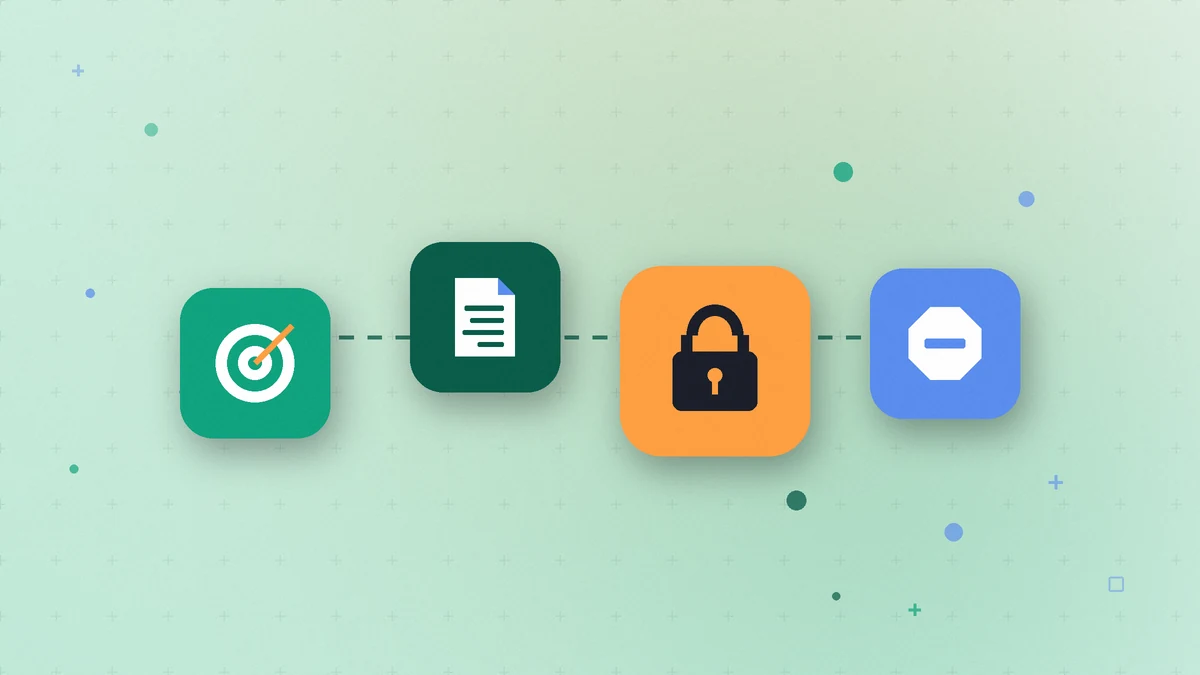
The official getting-started guide recommends five elements. Here’s how they show up in the prompts above:
- The outcome: what should be ready at the end. “A table with five columns” beats “check this for me.”
- The sources: which files, sites or tools are relevant, and what’s in each file.
- The limits: what’s not allowed. Any action that goes out, like sending, publishing, buying or deleting, should go through you.
- The output: what form to return it in: a chat message, a document, a spreadsheet or an unsent draft.
- The stopping point: when the bot should wait for you, for example before saving a final version or when a detail is missing.
Two more habits:
- Ask it to separate facts from guesses. The documentation on files and results recommends asking separately for what was found in the sources, what the bot inferred on its own and what it couldn’t verify.
- Permanent rules go in the bot’s description. A sentence like “don’t send emails without approval” is written there once. According to the approvals guide, you can also add Ask first rules, which stop certain kinds of actions for your approval.
How do you turn a good prompt into a routine?
Don’t schedule a prompt you haven’t tested. According to the skills and routines guide, the order is: a one-off task, fixes, saving it as a skill (prompt 11) and only then a routine. Make sure the time, the time zone and what to do when a source is unavailable are all set, and run a Test run. Even a test run does real work. Our Grok Bot routines guide walks through it step by step.
How did we test the prompts?
On October 3, 2026, we ran the original right-to-left versions of these prompts as real tasks in Grok Bot, on sample material we prepared, such as a meeting transcript, price quotes, a contract and six photographed receipts (one deliberately blurry). We ran the research prompts against public websites. The English wording here is a translation and adaptation of those prompts, and we haven’t re-run it.
We didn’t fully run five prompts. Prompts 4 and 10 need email and calendar connections, and 10 and 12 create a real routine. For 6 we wrote the drafts but didn’t save them to email, and for 11 we got the skill for review without saving it to the account. For these prompts we only checked that the instructions are clear.
Based on testing, we fixed 15 prompts, for example:
- In prompt 7 we added the niche width. According to the manufacturer, a 70 cm wide fridge needed a 74 cm niche.
- In prompt 15 we allowed starting from a comparison site. Collecting from every provider’s site was too slow.
- In prompt 5 we asked for brackets around every commitment, after the draft promised the customer a date we hadn’t approved.
Sample output from our test (prompt 19, translated into English): “Receipt 6 is blurry. It looks like a taxi ride for roughly 52 (sample-file currency), but I couldn’t read the date, the business name or the tax with certainty, so I left the row empty.”
We tested each prompt once, on our own examples, so your results may differ.
FAQ
Can I write to Grok Bot in languages other than English?
Yes. We originally wrote and tested these prompts in a language other than English. As for the interface, according to Cursor’s help center the desktop app offers 31 interface languages. More in our Grok Bot language support guide.
Why does every prompt say “don’t send”?
Because the bot works in real tools, and a mistake can turn into an email that actually went out. One sentence at the end of the request prevents that.
What’s the difference between a prompt and a skill?
A prompt is a one-off request. A skill is saved instructions that every bot in your account can run again.
Looking for bot roles to go with these prompts? See 15 Grok Bot ideas.
Sources
- Grok Bot Docs: Get started
- Grok Bot Docs: Use cases
- Grok Bot Docs: Skills and routines
- Grok Bot Docs: Files and results
- Grok Bot Docs: Computer and apps
- Grok Bot Docs: Approvals, security and privacy
- Grok Bot Docs: FAQ
- Cursor Help: Grok Bot How Tos (app language)
The capabilities mentioned here were checked against the official documentation on October 3, 2026.

