Grok Bot is a SpaceXAI app for creating digital “teammates”: named bots with a fixed role that do real work. They run on a cloud virtual machine where they browse, save files and use software, so work doesn’t depend on your laptop. There’s no separate subscription: access comes with paid Cursor plans or a linked SuperGrok or X Premium+ plan.
For current plans, prices and every Maitz article on Grok Bot, see our Grok Bot hub.
- Whenever a decision is needed, like sending an email or making a purchase, the bot stops and waits for you.
- The best way to start: install the app, create one bot and try it on a small task you can easily check yourself.
What is Grok Bot, in plain terms?
Grok Bot is a SpaceXAI service in which permanent, named bots carry out tasks on a virtual machine in the cloud and stop for your approval whenever a decision is needed.
Most AI tools you know work as a conversation: you ask a question, get some text, paste it somewhere else and finish the job yourself. Grok Bot works differently. Instead of a one-off chat, you create a bot with a name, a role and a job description. It goes into the tools you use, carries the task through to the end and reports back to you in chat.
In its launch announcement on August 11, 2026, the company describes the product as “AI teammates you can give real work to.” The company appears there under the name SpaceXAI. You may also see the name xAI on other sites; it’s the same company that develops the Grok chatbot.
Think of it as a new hire who got their own computer. You message them like you would a colleague, and they work on that computer: browsing, filling in spreadsheets, reading documents and preparing drafts. When something needs your decision, like sending an email or making a purchase, they stop and ask.
How is Grok Bot different from the Grok chatbot or ChatGPT?
In a regular chat, you do most of the work and the AI advises. With Grok Bot the roles flip: the bot does the work, and you approve it. The table sums up the differences, based on the official documentation:
| Regular AI chat | Grok Bot | |
|---|---|---|
| What you get | An answer or text in the chat | A task completed in the tools themselves, or a draft waiting for your approval |
| Where the work happens | In the chat window | On a cloud computer with a browser, files and a terminal |
| After you close your laptop | The conversation stops | The bot keeps working in the cloud |
| Memory | Usually per conversation | Each bot keeps its role and preferences over time |
| Number of assistants | One | Several bots, each with its own role, that can work together |
| Recurring tasks | You have to ask every time | You can set up a routine that runs on a schedule |
Other tools are moving in the same direction. OpenAI, for example, launched Dots, assistants that keep working after the conversation ends. We compare the two in Grok Bot vs Dots, and look at ChatGPT more broadly in our Grok Bot vs ChatGPT comparison.
What can the bots actually do?
They have their own computer in the cloud
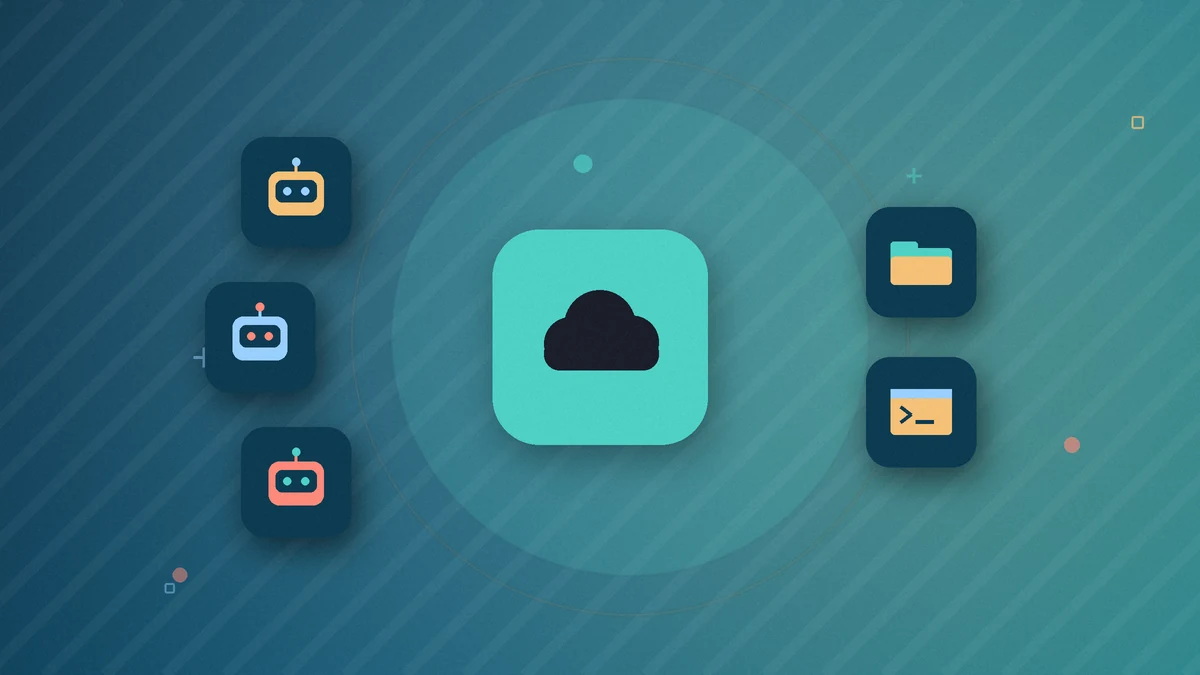
Grok Bot doesn’t use your computer to do its work. Your account has one virtual computer in the cloud, and that’s where the bots browse, save files and run commands. All bots share the same machine, so anything one bot downloaded or signed into is available to the others too, and you don’t need to log in to the same site again and again. Each bot gets its own workspace on the machine, so two or three bots can browse at the same time.
You can open a bot’s screen to watch what it’s doing, or take over. That’s useful when a site asks for a password, a verification code or a CAPTCHA: you type it in yourself and hand control back.
They connect to your apps
Popular services have ready-made connections, listed in the app as Plugins. According to a guide from the company’s team, these include Gmail, Google Calendar and Google Drive, and you can connect several accounts to the same service. When there’s no connection, the bot works through the browser, just as you would. According to the documentation, when a connection exists you should prefer it, because it’s usually more reliable.
They remember and learn how you work
A bot doesn’t start every conversation from scratch. According to the documentation, it remembers what you asked for in the past, the style you like your results in and what its role is. In the bot’s description you write rules that always apply, like “never send emails without approval.” One-off tasks go in the chat. Just don’t rely on that memory for important details like a price or a deadline. Ask the bot to open the source and check again.
Skills and routines: work that repeats
Say that every morning you go through the emails that came in overnight and look for anything urgent. In Grok Bot you can split that into two parts. The “skill” is the recipe: what to check, what counts as urgent and what the summary looks like. The “routine” is the clock: it runs the recipe on a specific bot every morning at eight, and for some services also in response to an event, such as a new message. Each bot can have up to 50 routines, and they run even when your laptop is closed. Some accounts also have a “teach a task” option: you record a process in the browser, up to ten minutes long, and the bot turns it into a draft skill. This feature is rolling out gradually, so you may not see it yet.
Several bots working together
You can open a group chat with two to six bots. One gathers material, another writes and a third reviews, and they hand work off to each other. Use an @ mention to direct a message to a specific bot.
You can also talk to them
On desktop you can dictate a message with Ctrl+D, or Cmd+D on a Mac. You can also start a live voice conversation, and the bot can send you voice messages.
How much does it cost, and who can use it?
Grok Bot has no standalone subscription. Access comes through a subscription you may already have. Cursor’s plans page lists the options (we cover them in detail in How much does Grok Bot cost):
- Through Cursor: Pro, Pro+ or Ultra, or a seat on a Teams plan. You sign in to the app with the same Cursor account.
- Linking a Grok or X subscription: a personal SuperGrok, SuperGrok Plus, SuperGrok Heavy or X Premium+ subscription linked to your Cursor account. Grok Bot is not included in SuperGrok Lite.
Usage is measured as a weekly allowance that refills, and the size of the allowance depends on your plan. If you run out mid-week, you can wait for the reset, or turn on extra usage-based billing and set a monthly cap for it. Two important things before you pay: a Cursor subscription and a SuperGrok subscription do not stack into a bigger allowance, and linking a SuperGrok subscription to an account is permanent and can’t be undone.
If you want to try before paying, you get a starting amount of usage that you can spend over one week. It’s used up according to how much work the bot does, not the number of messages, so a single heavy task can use it all. Try something small first. Check Cursor’s pricing page for current prices before you sign up, since they may change.
How the trial works, what uses up the credit, and how not to waste it in the first week are covered in our Grok Bot free trial guide.
How do you get started? Five steps
- Download the app from the official download page (step by step in our guide to downloading and installing Grok Bot). There are versions for Mac (Apple silicon and Intel), Windows (x64 and Arm64) and Linux. On Windows, you can check your processor type under Settings → System → About.
- Sign in with your Cursor account. If your access comes from SuperGrok, the app will ask you to link the account. Make sure you’re signed in to the right account, because the link can’t be moved later.
- Wait for the computer to be set up. The first time, this can take a few minutes. While you wait, you’ll be asked about the tools you work with, and based on your answers you’ll get suggestions for your first bots.
- Create your first bot and give it one area of responsibility. A bot called “Email Assistant” will work better than one called “General Assistant,” because it’s clear what’s expected of it.
- Give it a small reading-and-preparation task, and check the result before expanding.
The official getting-started guide is in the Grok Bot documentation. The app is also available for iPhone and Android, and your bots and conversations sync across devices.
What does a good first task look like?
For the first time, pick work you can check in a minute or two, and where nothing goes out into the world. Here’s an example you can copy:
You are a research assistant. Find 5 articles from the past month about AI tools for small businesses.
For each article, write: title, link, date and two sentences on what matters in it.
Keep what the source says separate from your own interpretation.
Return the result here in the chat. Do not send any messages or publish anything.
Notice three things: there’s a defined output, a requirement for sources, and a clear limit on what the bot must not do. Once the result is good, you can turn the task into a weekly routine.
What should you watch out for before giving access?
A bot that works inside your tools needs clear rules. According to the official security guide, these are the key points:
- Creating another bot doesn’t protect your data. All bots share the same machine, and whatever one bot can see, including sites you’ve signed into and files, is available to the others too.
- Grant access gradually. In the first few weeks, let the bot only read and prepare drafts. Any action that goes out or can’t be undone, like an email, a post, a payment or a deletion, should go through you.
- Don’t paste passwords into the chat. When a site needs you to sign in, take over the computer and type it yourself.
- Your own computer is protected separately. With the default settings, any attempt by a bot to run a command on the computer in front of you waits for your approval, command by command.
- Clean up at the end. Sign out of sites and disconnect connections you no longer need. It’s worth checking from time to time which routines are active.
Who is Grok Bot for?
Grok Bot is especially useful if you have work that repeats across several tools: a small business owner sorting email and calendar, a content writer gathering sources, or a manager preparing a weekly report. If you mostly need answers to questions, a document summary or help with wording, a regular chat like ChatGPT will usually be enough.
Before you pay, ask yourself: do I have one task I do every week that I can define clearly? If so, that’s a good task to start with.
For how Grok Bot stacks up against Claude on prices, automation and privacy, see our Grok Bot vs Claude comparison.
Grok Bot FAQ
Is Grok Bot free?
No. There’s a free trial in the form of usage credit, and after that you need a paid Cursor plan or a linked SuperGrok or X Premium+ subscription. Check Cursor’s pricing page for current prices.
How much does Grok Bot cost?
It has no standalone price; it’s included in paid Cursor plans or a linked SuperGrok or X Premium+ subscription. See Grok Bot pricing.
Is Grok Bot the same as Grok?
No. They’re two separate apps. In a chat like Grok, you do most of the work and the AI advises; in Grok Bot, the bot does the work on a cloud computer and you approve it.
What happens if I close my laptop in the middle of a task?
The bot carries on as usual. It works on the cloud machine, so you can shut down your computer or close the app on your phone, and the result will be waiting when you come back.
Can I use Grok Bot in languages other than English?
Yes. You can write to the bot in other languages. According to Cursor’s help center, the desktop app offers 31 interface languages, including Spanish, French, German, Arabic and Japanese. The phone app has a shorter list. New bots write to you in the app’s language unless you write to them in another one.
Can the bot send emails or make purchases on my behalf?
Technically, it can work in any site or service you’ve connected. That’s why it’s a good idea to write in the bot’s description that every send, post, purchase or deletion requires approval, and to set approval rules in the settings. When a bot prepares an email, it’s shown as a draft you can edit before sending.
What’s the difference between a skill and a routine?
Think of a recipe and a timer. The skill is the recipe, meaning the instructions for doing the task. The routine is the timer that runs the recipe at a set time. Before you set the timer, it’s worth cooking the recipe once by hand and making sure the result is good.
Which devices does it work on?
Mac (Apple silicon and Intel), Windows (x64 and Arm64) and Linux computers, iPhone with iOS 18 or later, and Android 9 or later. Some actions, like editing routines and “teach a task,” are available only in the desktop app.
Sources
- Grok Bot launch announcement (SpaceXAI)
- Official Grok Bot documentation: FAQ
- Cursor Docs: Grok Bot
- Cursor Help: Grok Bot plans and billing
- Cursor Help: Grok Bot FAQs (accessed October 6, 2026)
- Cursor Help: Grok Bot How Tos (app language)
- Product and download page
This article is based on the official documentation as checked on October 3, 2026. The product is updated often, and we’ll update this article when things change.

