Grok Bot supports 31 interface languages on desktop and 11 on the iPhone and Android app, according to Cursor’s official help center. You can write to the bots in other languages and get replies in them. Our tests in a right-to-left language worked for summaries, tables and Word files; voice recognition was not tested.
For current plans, prices and every Maitz article on Grok Bot, see our Grok Bot hub.
In short
- Interface: according to Cursor’s official help center, the Grok Bot desktop app offers 31 interface languages, including right-to-left languages like Arabic, Hebrew and Urdu. The phone app has a shorter list of 11 languages.
- Writing: you can write to the bots in other languages and get replies in those languages. In our tests in a right-to-left language, the bot returned summaries, tables and Word files without mixing up numbers, dates and English terms.
- Voice: dictation and voice chat have their own language settings. We haven’t tested recognition quality, so we won’t promise it.
Grok Bot, the agent app from SpaceXAI, was built English-first. That doesn’t mean you have to talk to it in English. We looked at three separate things, because each works differently: the language of the menus, the language the bot writes in, and the language it hears you in. Our hands-on tests were done in one right-to-left (RTL) language, so the tips on mixed-direction text and files are especially relevant if you work in Arabic, Hebrew, Urdu or another RTL language. If you’re new to the tool, start with What is Grok Bot.
Which interface languages does Grok Bot support?
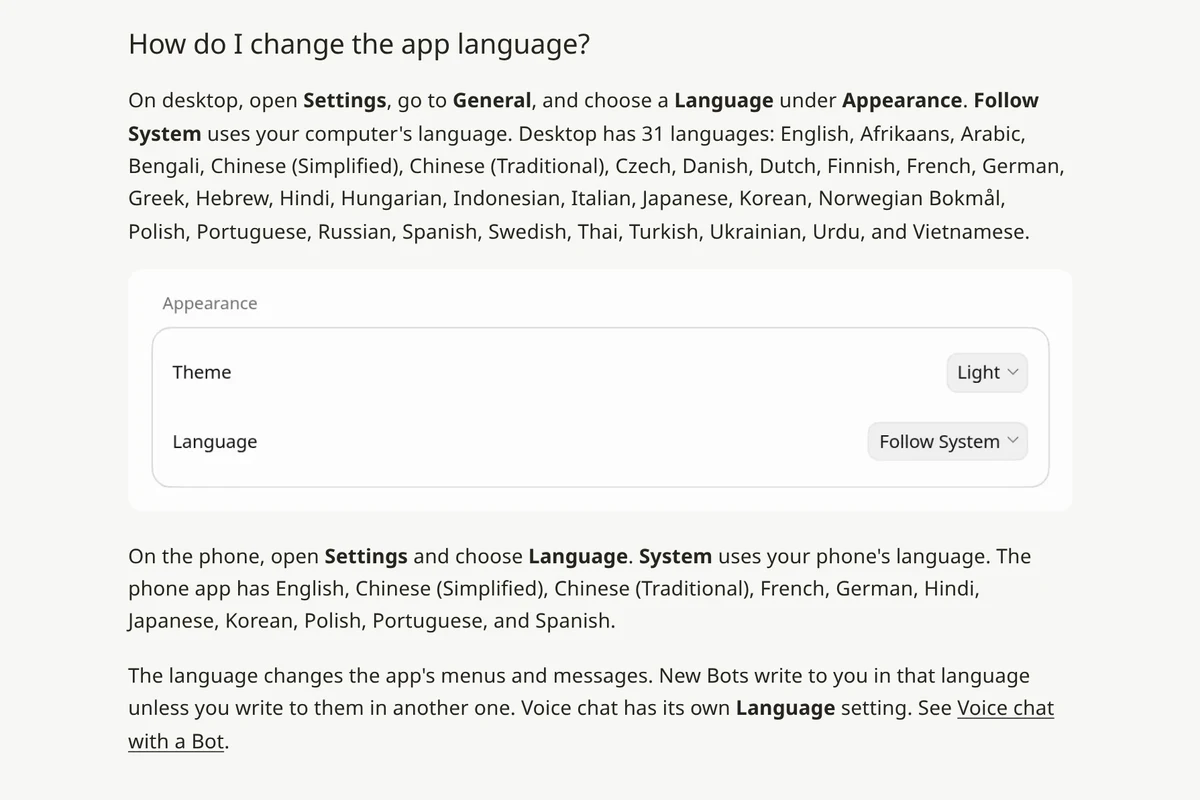
On desktop, according to the official help center, you open Settings, go to General, and choose a language under Appearance, in the Language field. The Follow System option simply uses your operating system’s language.
The desktop app has 31 languages: English, Afrikaans, Arabic, Bengali, Chinese (Simplified), Chinese (Traditional), Czech, Danish, Dutch, Finnish, French, German, Greek, Hebrew, Hindi, Hungarian, Indonesian, Italian, Japanese, Korean, Norwegian Bokmål, Polish, Portuguese, Russian, Spanish, Swedish, Thai, Turkish, Ukrainian, Urdu and Vietnamese.
The phone is different. The iPhone and Android app has 11 languages: English, Chinese (Simplified), Chinese (Traditional), French, German, Hindi, Japanese, Korean, Polish, Portuguese and Spanish. Arabic, Hebrew and Urdu are not on that list. The System option there follows the device language. We didn’t test what’s shown when the device itself is set to a language the app doesn’t support.
A fair note: we didn’t take screenshots of the app in a non-English interface language, and we didn’t check how much of it is translated. In our guides we write button names in English, as they appear in the documentation.
Which language will the bot write to you in?
According to the help center, a new bot writes to you in the interface language, unless you write to it in another language. So even if the interface is in English, it’s enough to address the bot in your own language.
To keep it from switching midway, write it once in the bot’s description. The description is the place for permanent rules, and the chat is the place for the current task. Here’s the kind of rule we used (adapt the language and formats to yours):
Always write to me in [your language], even when the sources are in English.
Keep button, setting and product names in English, exactly as they appear on screen.
Write dates as [day.month.year], and amounts in [currency] with the [symbol] sign.
In our test, we gave the bot an English paragraph from the official documentation on approvals and asked for a summary in our right-to-left test language following these rules. We got four lines in that language, and the setting names stayed as they are on screen: Ask first, Allow automatically and Settings → General → Auto-review. That matters, because a loosely translated button name becomes impossible to find.
How does the bot handle mixed-direction text?
The common problem in RTL languages isn’t the language itself but the mixing: order numbers, email addresses, English terms and dates inside one sentence. We prepared a made-up call summary with a print supplier containing exactly all of these, and asked (in our test language; English version below):
I've attached a summary of a call with a supplier.
Create a Word file in [your language], right-to-left, with a short summary and a table of open tasks with the columns: task, due by, note.
Copy amounts, dates and times exactly as in the original.
Anything not agreed in the call, mark as "not set" and don't fill it in yourself.
Don't send anything to the supplier.
The result was good: all the amounts were kept (1,250 plus 80 for shipping, in the sample’s currency), three tasks without a date were marked “not set,” and the email address, “#4521” and “CMYK” appeared in the right place inside the right-to-left sentence.
What happens with right-to-left Word and Excel files?
According to the documentation, you can attach Word, Excel, PowerPoint and PDF files to the bot, up to six files per message and up to 25MB per file. The interesting question is what it returns.
- Word: the file we got was correct. The paragraphs were right-aligned, and the “task” column in the table was on the right side, as it should be.
- Excel: here we found a problem. The sheet itself was built right-to-left, with formulas for the total and the VAT rate in our sample. But in cells that start with a number or end with a question mark, the order flipped: “500 A5 flyers” was displayed in reverse order, and the question mark in the header “VAT included?” jumped to the wrong side.
The fix was simple: we asked for right-to-left reading direction in all cells, and after that everything displayed correctly. Since then we add this line to every spreadsheet request:
Build the sheet right-to-left, and set the reading direction to right-to-left in all cells, including headers.
Amounts in [currency] format with two decimal places.
Another tip: if you ask for a CSV file and it opens as gibberish in Excel, ask the bot to save it in UTF-8 encoding with a BOM, or simply ask for an xlsx file instead.
Can you talk to the bot in your language?
There are two ways to talk, and the documentation distinguishes between them:
- Dictation (Start voice input): types what you said into the message box, and you edit it before sending. On desktop the shortcut is
Cmd/Ctrl+D, and on the phone it’s Start dictation. - Voice chat (Start voice chat): a live conversation where the bot answers out loud. The wave button appears only when the message box is empty. The voice chat settings have their own Language option, and Auto-detect identifies the language from what you say.
We haven’t tested recognition quality, and we didn’t confirm in the documentation which languages voice chat recognizes. Our recommendation is to try a short dictation, read what was typed before sending, and not rely on voice input for tasks that involve names, amounts or addresses.
Which habits save corrections?
Three things worth writing down up front, because without them you’ll find yourself fixing them again and again:
- Form of address. In languages with gendered or formal forms, say how to address readers. A rule such as “address customers formally” prevents switching forms in the middle of a letter.
- Local formats. Date format, tax rate, currency and local time. For scheduled routines this is especially important: according to the documentation, the time follows the Timezone field in Settings, so make sure it’s set correctly.
- Quote vs translation. When you ask for a summary of an English source, say whether you want the original quote or a translation. For important decisions, ask for both so you can compare.
What works and what doesn’t yet?
| Topic | Status | How we know |
|---|---|---|
| Desktop interface | 31 languages, including Arabic, Hebrew and Urdu | Official help center (we didn’t screenshot a non-English interface) |
| Phone interface | 11 languages, none of them right-to-left | Official help center |
| Requests and replies in a right-to-left language | Works | Our test |
| Mixed text (numbers, email, English) | Works | Our test |
| Right-to-left Word file | Works | Our test |
| Right-to-left Excel file | Works, if you ask for reading direction in every cell | Our test |
| Dictation and voice chat in other languages | Not tested | Voice chat has a separate language setting |
Want to get started right away? 20 Grok Bot prompts has ready-to-copy requests, and the first bot guide has a role description you can paste as is.
How did we test?
On October 3, 2026, we ran four requests in Grok Bot in one right-to-left language, on material we prepared: a made-up call summary with a supplier, a paragraph from the official English documentation, and a request for a cost spreadsheet. We opened the files the bot created, converted them to PDF and visually checked the text direction and the order of numbers and English words.
What we didn’t test: a non-English interface, dictation and voice chat, and how the chat window displays lines that mix right-to-left text and English. We didn’t test other languages. Every test ran once, on our own examples.
FAQ
Do I need to write to Grok Bot in English for it to understand better?
No. In our test, requests written in a language other than English were carried out properly. What does help: writing button, site and product names as they appear in the original, so the bot can find them.
If I change the interface language, will my existing bots switch too?
The help center talks about new bots, which write in the interface language. An existing bot usually keeps using the language you’ve been talking to it in. The safest option is to write the reply language in its description.
Is the phone app available in Arabic?
As of October 3, 2026, Arabic didn’t appear on the phone app’s language list. You can still write to the bots in Arabic there.
Does using another language cost more?
No. Grok Bot is included in certain subscriptions, and every task counts toward the weekly allowance. Details in How much does Grok Bot cost.
Sources
- Grok Bot Docs: Settings and notifications (app language)
- Grok Bot Docs: FAQ
- Grok Bot Docs: Messages and collaboration (dictation and voice chat)
- Grok Bot Docs: Files and results
- Grok Bot Docs: Grok Bot on mobile
- Cursor Help: Grok Bot How Tos (changing the app language)
- Cursor Help: Voice chat with a Bot
The capabilities mentioned here were checked against the official documentation on October 3, 2026.

