Updated: October 3, 2026
In short
- You connect from the Marketplace in the sidebar: choose the plugin, click Add, and approve the sign-in in your browser. Not through Settings.
- An installed connection is available to every bot in the account, not just one. With Gmail you can connect only one inbox at a time.
- A company Google account may require approval from your IT admin. A personal Gmail account doesn’t need that.
A lot of the work Grok Bot, the agent app from SpaceXAI, can do for you starts in your inbox, your calendar and your document folders. For the bot to reach them, you connect them as plugins. According to the documentation, a connection like this is usually more reliable than letting the bot log in to a site and navigate it. In this guide we cover the connection itself, what each plugin can do, and what to do when something gets stuck.
For current plans, prices and every Maitz article on Grok Bot, see our Grok Bot hub.
What can each connection do?
| Plugin | What it can do | What it can’t do |
|---|---|---|
| Gmail | Search and read emails, write drafts, send and label | Connect more than one inbox at a time |
| Google Calendar | Read calendars you can see, create and update events, check free time and respond to invitations | Change Meet settings or add a Zoom link |
| Google Drive | Search and read files the account can open | Edit cells in a spreadsheet (that needs the Sheets plugin) |
| Google Sheets | Read and edit cells in spreadsheets you have edit access to | Change sharing permissions |
One rule applies to all of them: a plugin works with the permissions of the account you connected. It can’t do more than you can, and it doesn’t change sharing settings.
How do you connect, step by step?
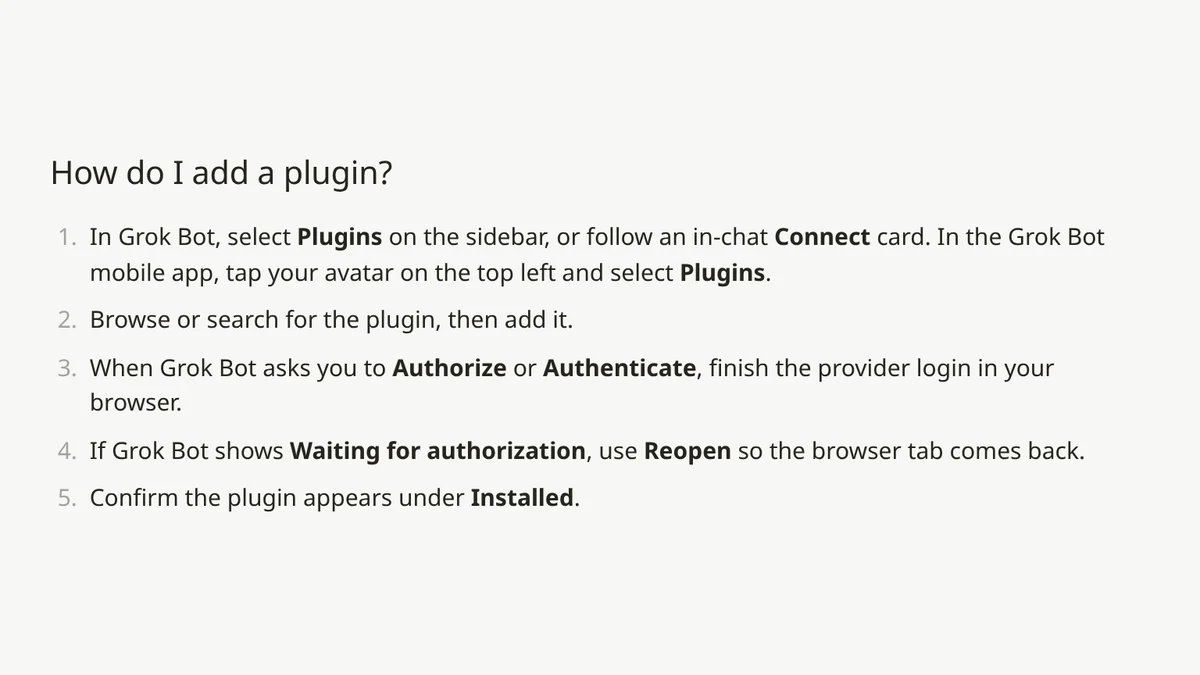
- Open the Marketplace in the sidebar. On Cursor’s help page the same place is called Plugins. On the phone: tap your profile picture in the corner and choose Plugins.
- Search for the plugin, for example Gmail, and choose Add.
- When Authorize or Authenticate appears, complete the sign-in in the browser, with the right account.
- If the app shows Waiting for authorization, click Reopen to bring the browser tab back.
- Check that the plugin appears under Installed.
Repeat this for each service separately. Another way to reach the same place is the Connect card the bot shows in the chat when it needs a connection. You can wait for that card, but the help page recommends not waiting and connecting in advance.
How do you tell the bot to use a connection?
In the message box, type @ and choose the connection, which attaches it to the task. With / you point to a saved skill. It’s worth starting with a read-only task, to make sure the connection works:
@Gmail find the last five emails I received from customers and show only sender, subject and date.
Don't open attachments, don't send, don't delete and don't mark as read.
What about a work Google account?
With a company account, Google may stop the sign-in before it finishes. Note that in Google, the app appears under the name Grok, not Cursor. If you see a message that an admin needs to review Grok, according to the help page your IT admin needs to approve it in the Google Admin console:
- Security, then Access and data control, then API controls.
- App access control, then Manage third-party app access.
- Add the Grok app, and mark it Trusted for employees who use Grok Bot.
One such approval covers all the Google plugins. If Access blocked still appears after approval, switching browsers or reconnecting won’t help, and you need to contact support. In a Cursor team there’s one more layer: a plugin labeled Disabled by team admin was blocked by the team admin, and only they can enable it.
Can you connect two Gmail inboxes?
No. Gmail connects to one inbox at a time. To switch from a personal inbox to a work inbox, disconnect the current one and authorize the other. Some other plugins, like Notion, show Add Another Account: you give each account a label, for example “work” or “personal,” and tell the bot which one to use. If the button doesn’t appear, the plugin connects only one account.
How do you work with Calendar and Drive?
In Calendar, the bot can suggest times and schedule meetings, but a Zoom link is the exception: the Zoom add-on in Calendar isn’t available to the plugin. The help page suggests writing the link yourself in the location or description, or creating the event in Calendar and asking the bot to fill in the rest of the details.
@Google Calendar find three free 45-minute slots next week, [Monday to Friday], between 09:00 and 16:00.
Show them as a list. Don't create an event and don't respond to invitations.
In Drive, you search and read. To edit a spreadsheet, you also need the Sheets plugin:
@Google Drive find the most recent file with "price quote" in its name and give me a five-line summary.
Don't change it and don't share it.
Haven’t connected yet? You can start by pasting
Even without a connection, you can paste an email into the chat and ask for a draft reply. This is the prompt we ran (in a right-to-left language; English version shown):
This is an email I received. Write a short, polite draft reply.
Don't suggest a date or time yourself. Put any date, attachment or commitment in brackets [to confirm].
Which tasks should you give after connecting?
Start with tasks that only read and summarize, and move to writing only once you trust the results:
- Morning inbox summary: which requests are waiting for a reply, from whom and by when. Without marking anything as read.
- Meeting prep: the bot finds your next meeting in Calendar, searches Drive for related documents, and prepares a short background page.
- Draft replies: the bot writes a draft in Gmail, and you read, edit and send it yourself.
- Scheduling: the bot checks free time and suggests three options. You create or approve the invitation.
A task that works well a few times can be saved as a skill and run at a fixed time. See our routines guide.
Why does the bot say a connection is missing?
Added only means the plugin is installed, not that you’re signed in. Open the plugin and check its status:
- Needs auth or Disconnected: choose Authorize and complete it in the browser.
- Connected: send the bot a new message and ask it to try again.
- Sign-in didn’t complete: choose Retry, and complete it in the browser within about ten minutes.
- Still not working: Remove, add it again and sign in.
More common problems are in Grok Bot not working?.
How do you disconnect, and what should you know about privacy?
An installed plugin is available to every bot in the account. If a particular bot shouldn’t access the inbox, the only way, according to the help page, is to disconnect Gmail. A teammate’s Team Bot will ask before using your accounts. Decided to stop? Remove the plugin, and it’s worth revoking access in your Google account settings too. We cover this in more depth in Grok Bot privacy and security.
How did we test?
We didn’t connect a real inbox, calendar or Drive, so we didn’t run the three @ prompts. We only checked that they’re clear and that their restrictions are explicit. The steps, button names and capabilities come from the official documentation and help page. We did run the paste prompt, in a right-to-left language, on a sample email in which a customer asks to move a meeting. In the first version the bot “set” Thursday at three on its own, so we added the line that forbids suggesting a date.
FAQ
Is the connection in Settings?
No. According to the current documentation, you connect from the Marketplace in the sidebar, or from a Connect card in the chat.
Will the bot send emails without asking?
The Gmail plugin can send. It’s worth writing “don’t send” in every task, and checking the approval rules in the app. Approvals are explained in Grok Bot privacy and security.
Are there connections for Docs, Sheets and Slides too?
The help page lists Gmail, Calendar, Drive, Docs, Sheets and Slides as Google plugins, all connecting through the same Grok approval. Check the Marketplace for what’s available to your account. To edit cells in a spreadsheet you need Sheets; Drive isn’t enough.
Can I connect from my phone?
Yes. Tap your profile picture and choose Plugins. Connections are shared across all devices on the same account.
Can I connect Zoom instead of adding the link by hand?
As of October 3, 2026, no. According to the help page, connecting Zoom from the desktop app fails with error 4700, and it’s a known issue with no workaround yet. Until it’s fixed, add the Zoom link to the event yourself.
What should I do with the connection once it works?
Hand it recurring tasks. For ideas, see Grok Bot for small business and our routines guide.
Sources
- Grok Bot Docs: Computer and apps
- Grok Bot Docs: Get started
- Grok Bot Docs: Skills and routines
- Grok Bot Docs: Troubleshooting
- Cursor Help: Connect plugins
- Cursor Help: Grok Bot How Tos
The capabilities mentioned here were checked against the official documentation on October 3, 2026.

