
Small businesses get the most from Grok Bot by handing off preparation work: organizing, calculating, summarizing and drafting, while decisions and sending stay with the owner. This guide covers seven tasks, from price quotes and leads to expenses and scheduling. Five work with uploaded files and no connected account, and every prompt forbids sending anything.
For current plans, prices and every Maitz article on Grok Bot, see our Grok Bot hub.
In short
- For a small business, the best place to start is preparation work: organizing, calculating, summarizing and drafting. The decision and the sending stay with you.
- Five of the seven tasks here work with files you upload to the chat, without connecting any account. We ran them on sample files.
- Every prompt includes a line that forbids sending or changing anything. Any promise to a customer is marked in brackets so you approve it yourself.
A small business owner is also the sales team, the bookkeeper and the customer service desk. Grok Bot, the agent app from SpaceXAI, can take on some of that quiet work: the bot works on a cloud computer, reads files, builds tables and drafts messages. This guide suggests seven concrete tasks, with a prompt for each. If you haven’t set up a bot yet, start with the first bot guide.
Which tasks should you hand off first?
| # | Task | What you need | What you get | Run in testing? |
|---|---|---|---|---|
| 1 | Price quote | Customer request and price list | A table and a draft reply | Yes |
| 2 | Lead follow-up | Leads file | Priorities and drafts | Yes |
| 3 | Inbox summary | Gmail connection | A list of requests to handle | No, structure only |
| 4 | Orders summary | Orders export | Totals and exceptions | Yes |
| 5 | Review replies | Review text | A draft reply for each | Yes |
| 6 | Expenses and receipts | Expenses export | Summary and gaps | Yes |
| 7 | Scheduling meetings | Calendar connection | Suggested times | No, structure only |
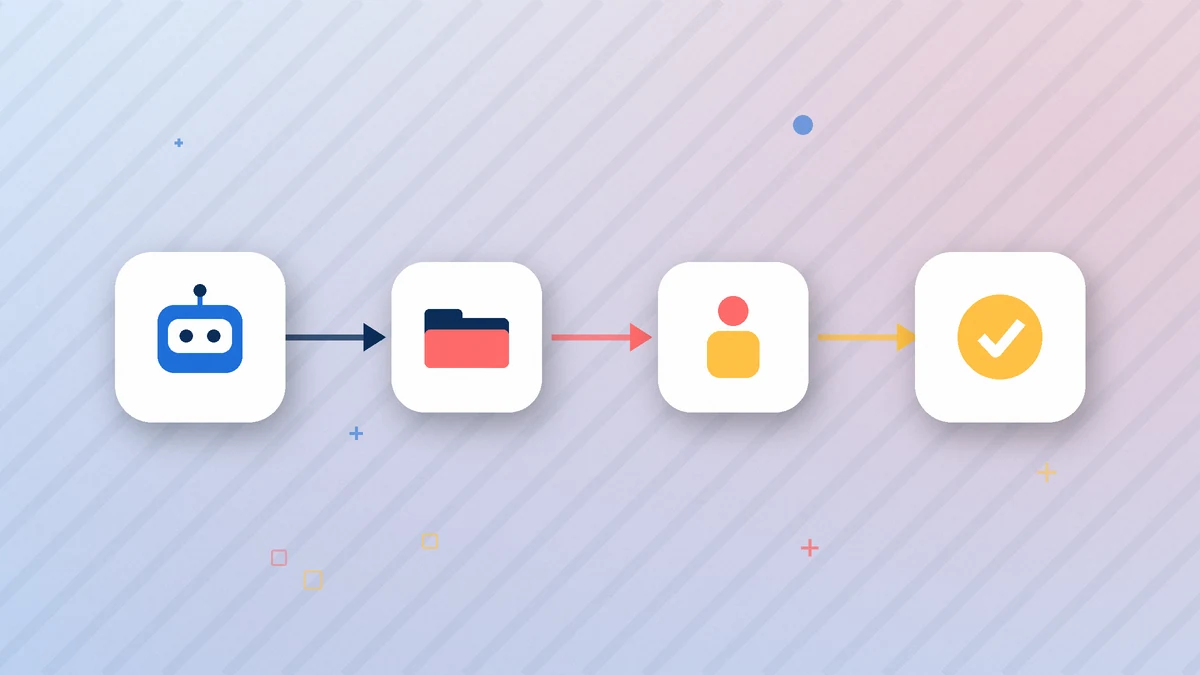
The rule is the same for every task: the bot prepares, and you approve. The documentation also recommends starting with preparation and drafts, and keeping every send, purchase, deletion or post behind your approval.
1. How do you prepare a price quote from a customer request?
Upload the customer’s message and your price list to the chat, as a file or as text:
Attached are a customer's request and my price list.
Build a quote table only for the items she explicitly asked for, with a total.
A service that might suit her but that she didn't ask for goes separately as a possible add-on, not included in the total.
Anything the price list doesn't answer, like tax, availability or a discount, write in brackets [to confirm].
Then write a short, warm draft reply. Don't send.
In testing, the customer asked for a sofa and an armchair and mentioned she has a cat. In the first version, the bot added pet odor treatment to the total, and also “confirmed” the date she asked for, without any information on availability. After the fix, the total included only what she asked for, and the add-on appeared separately. The bot also flagged two questions to check: whether the prices include tax, and whether there’s availability.
2. How do you follow up on leads without forgetting anyone?
Attached is my leads file. Merge duplicate rows by phone number.
Add a column for days since the last contact, and sort by urgency: new leads first, then those who got a quote and didn't reply.
For each lead, write a draft follow-up message of no more than two lines. Don't send anything, and leave the leads file as it is.
The bot identified a lead who had reached out twice, once on the website and once on WhatsApp, and merged the two rows. It also moved a request marked “urgent before the holiday” to the top of the list. We added the days-since-contact column to the prompt after the first run, because without it it was hard to see who had been waiting longest.
3. How do you get a summary of your inbox?
This task requires connecting Gmail. According to the help page, the plugin can search, read, create drafts, send and label, in one inbox at a time. How to connect it is explained in our guide to connecting Gmail, Google Calendar and Drive.
Go through the emails that arrived since yesterday morning.
List customer requests waiting for a reply: sender, subject, what they're asking for, and by when.
Don't send, don't delete, don't mark as read and don't move emails to folders.
We didn’t run this prompt, because we didn’t connect a real inbox. We only checked that it’s clear and that the restrictions in it are explicit.
4. How do you summarize the week’s orders?
Attached is this week's orders export.
Calculate total revenue and a breakdown by product.
List separately orders that weren't paid or whose status is empty. Don't assume their status.
Show the calculation so it can be checked against the file.
The test file had six orders. The bot correctly calculated a total of 632 (in the sample file’s currency) and broke down revenue by product. An order with an empty status was marked “to check” and wasn’t counted as shipped. We checked the calculation separately, and it matched.
5. How do you reply to Google reviews?
These are reviews we received. Write a draft reply to each one, up to three lines, in the first person plural.
For a negative review: thank them, apologize for the experience and offer a call. Don't argue and don't reveal customer details.
Put any compensation, discount or redo of the work in brackets [to confirm]. Don't publish.
This is where testing caught an important problem. In the first run, without the last line, the bot offered one customer a “free repeat cleaning.” Well meant, but it’s an unapproved commitment. After the fix, the offer appeared in brackets, for you to decide. You copy the replies to Google yourself.
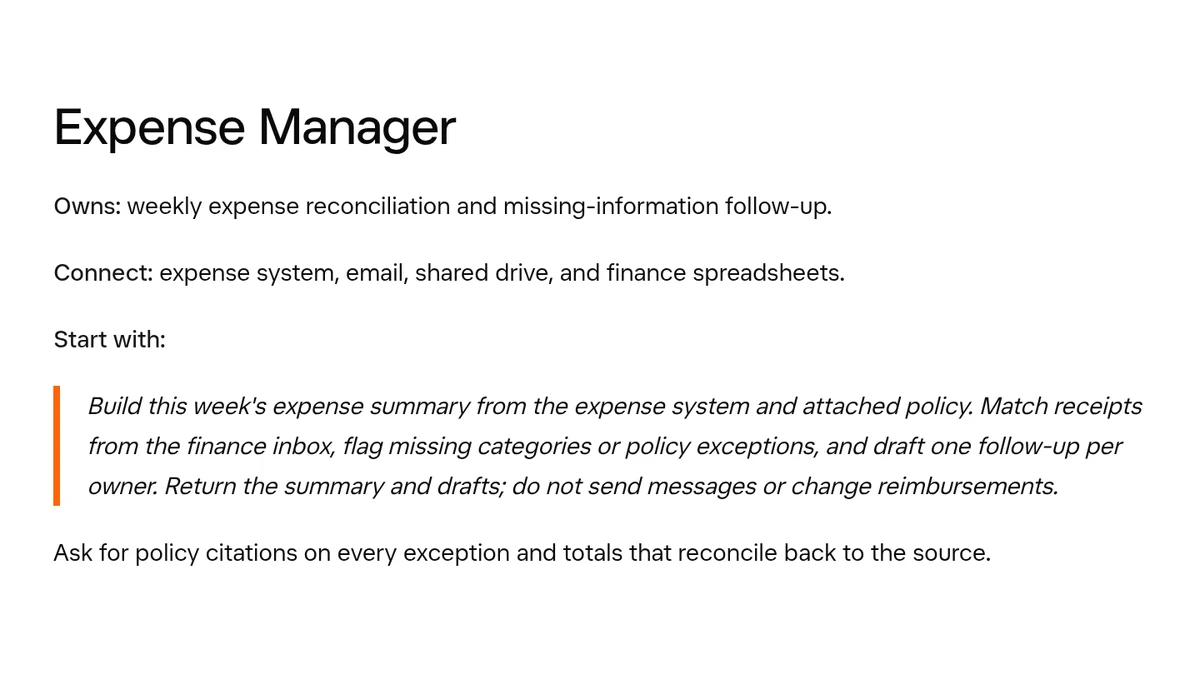
6. How do you check expenses and receipts?
Attached is this week's expenses export.
Calculate the total and a breakdown by category.
List separately rows without a category and rows without a receipt. Don't guess a category.
This isn't tax advice. Just organize the data.
Total expenses in the file came to 1,700 (in the sample file’s currency). The bot found one row without a category and two rows without a receipt, and didn’t guess which category a restaurant meal belonged to. That’s exactly what we asked for.
7. How do you schedule meetings with customers?
According to the help page, the Google Calendar plugin can read events, create and update them, check free time and respond to invitations. It doesn’t change Meet settings and doesn’t add Zoom links.
Find three free one-hour slots in my calendar next week, [Monday to Friday], between 09:00 and 17:00.
Write a draft message to the customer with the three options.
Don't create an event and don't send an invitation until I approve.
We also checked this prompt only as text, because it requires a connected calendar.
What shouldn’t you hand off to the bot?
- Final financial decisions. A discount, refund or price change is your decision. The bot can suggest, but you decide.
- Tax or legal advice. The bot can organize the data ahead of a meeting with your accountant, not replace them.
- Access to your bank account. The documentation recommends not leaving logins on the shared computer that no bot needs.
- Automatic sending to customers. Even when a task works well, keep the sending with you, at least for the first few weeks.
What do you do after a week?
When a task has worked well a few times, you can ask the bot to save it as a skill, and then run it at a fixed time. We cover that in our routines guide. It’s worth creating a separate bot for each area, for example one for sales and one for finance, so each builds up its own context. Remember that all the bots work on the same shared computer, so this isn’t separation for security purposes. What to keep off that computer is explained in Grok Bot privacy and security.
How did we test?
We created sample files for a made-up business: a customer request, a price list, a leads file, an orders export, three reviews and an expenses file. We ran tasks 1, 2, 4, 5 and 6 in Grok Bot, in a right-to-left language, and checked every calculation separately against the files. We fixed three of them after the first run: the price quote, the leads and the reviews. We didn’t run tasks 3 and 7, because they require connected Gmail and calendar, and only checked their wording. No message was sent, no reply was published and no original file was changed. The English prompts here are adapted translations of the ones we tested.
FAQ
Can the bot send messages to customers by itself?
With the right connection, yes. The documentation recommends requiring approval before every send, and in all the prompts here we wrote “don’t send” explicitly.
Do I need to connect accounts to get started?
No. Five of the seven tasks work with files you upload to the chat. According to the documentation, the desktop app lets you attach up to 6 files at a time, up to 25MB per document.
Can I write the prompts in another language?
Yes. We tested writing to Grok Bot in a language other than English; see our language support guide. More ready-made prompts are in 20 Grok Bot prompts.
How much does it cost a business?
Grok Bot is included in certain Cursor and SuperGrok subscriptions. Full details are in How much does Grok Bot cost.
Sources
- Grok Bot Docs: Use cases
- Grok Bot Docs: Approvals, security, and privacy
- Grok Bot Docs: Files and results
- Grok Bot Docs: Skills and routines
- Cursor Help: Connect plugins
The capabilities mentioned here were checked against the official documentation on October 3, 2026.

