Grok Bot privacy guide, updated October 3, 2026
In short
- All your bots work on one cloud computer. A file, a site login or a connection you’ve added is available to every bot in the account, so a separate bot is not a security barrier.
- Don’t write passwords or codes in the chat. Take over the computer and type them yourself, and keep keys in the secure secrets card.
- The most important rule: any action that goes out, like sending, publishing, buying or deleting, goes through you. Write it in the bot’s description and add Ask first rules.
An assistant that can get into your email, calendar and websites is an assistant that can also make mistakes there. That’s not a reason to give it up, but it is a reason to understand how it’s built. In this guide we explain what the bots in Grok Bot, the agent app from SpaceXAI, actually see, and sum it all up in eight rules. If you’re just getting started, read What is Grok Bot first.
For current plans, prices and every Maitz article on Grok Bot, see our Grok Bot hub.
What can the bots see?
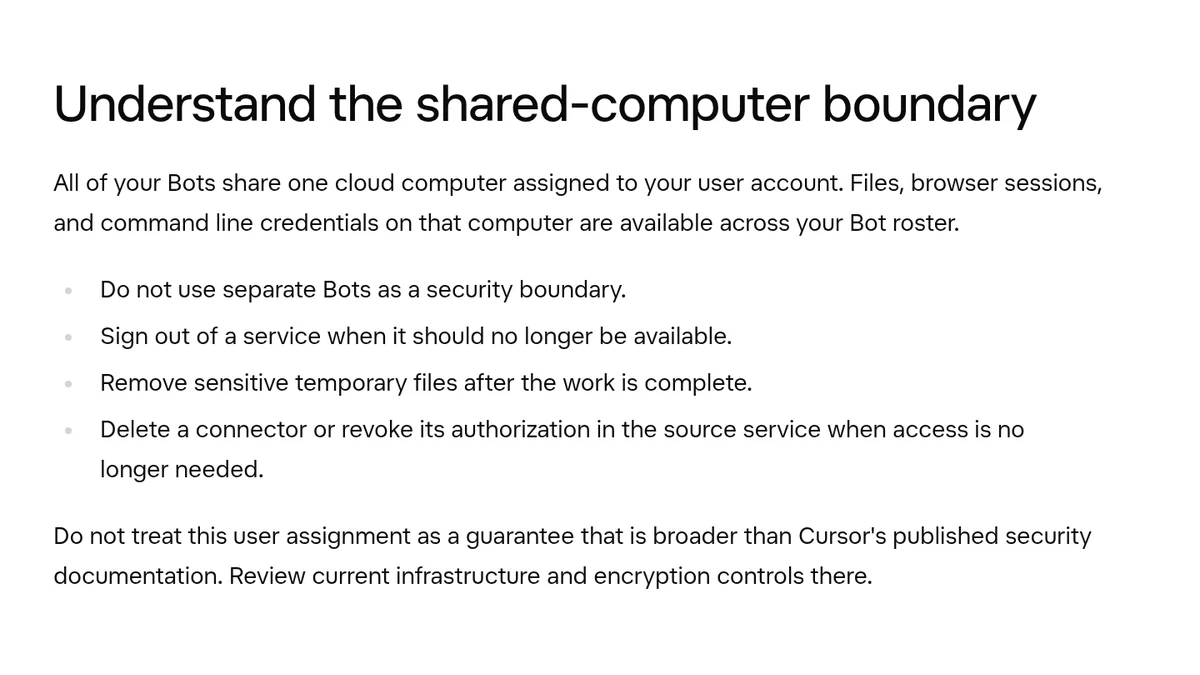
According to the documentation, all the bots in an account share one cloud computer, which belongs to the user rather than to a bot. Everything on it is available to all of them:
- Files in the shared
/workspacefolder - Site logins in the browser, including cookies
- Command-line credentials
- Connections (plugins) you’ve installed. They’re active for the whole account, not for one bot
Each bot does get a separate workspace screen, but according to the documentation these screens are meant for working in parallel, not for protection. Full isolation exists only between different users, not between the bots of the same user.
Two more things worth knowing: according to the security documentation, connection access tokens aren’t stored on the computer itself, and the computers currently run in the United States. A computer that isn’t working goes to sleep, which isn’t the same as being deleted.
What about your data?
Grok Bot uses your Cursor account and its data settings. It requires cloud data storage, so it doesn’t work with Legacy Privacy Mode. If you have that setting, you’ll need to change it in Cursor’s privacy settings before the bots can start working. Opting out of model training is determined by your Cursor account and privacy settings, not by a separate setting inside Grok Bot.
If you also use ChatGPT, Claude, or Gemini, our opt-out guide shows how to turn off training in each.
Which 8 rules should you adopt?
1. Don’t treat a separate bot as a safe
A file or login that one of the bots must not use shouldn’t be on the computer at all. Rules in the bot’s description help, but they’re instructions, not a block.
2. Type passwords and codes only during takeover
When a bot needs to sign in, it asks you to open the Agent Computer, take control and complete the sensitive step yourself: a password, a verification code, a CAPTCHA or a payment confirmation. Don’t paste them into the chat.
3. Keep keys in the secrets card
For an API key or other secret there’s a secure card. According to the help center, the value is hidden, isn’t written into the conversation, and isn’t shown again after saving, not even to the bot. Don’t keep keys in a regular file “as a backup.”
4. Connect only what the task needs
An installed connection is available to every bot. Gmail, for example, connects to one inbox at a time, and the help center recommends disconnecting it if a particular bot shouldn’t use that inbox. Where supported, it’s better to use a service account with limited permissions. How to connect and disconnect, step by step, is explained in our guide to connecting Gmail, Google Calendar and Drive.
5. Write limits twice: in the description and in Ask first rules
In the bot’s description, write a sentence like “never send an email without approval.” In addition, under Settings → General → Auto-review, add narrow Ask first rules, for example “ask before any external email.” When rules conflict, Ask first wins over Allow automatically. The documentation warns against broad rules like “approve everything in the browser.”
6. Read every approval card
The card shows the target, the scope and the values. Allow once approves one time, Always allow saves a permanent rule, and Deny blocks it. If it’s not clear what the action does, ask for an explanation or a draft. Note: an approval request from work that started without you, like a routine, expires after about ten minutes.
7. Your own computer stays closed by default
The bots can also run commands on your personal computer, but only if you’ve allowed it. The Execution on Local Computer setting is under Settings → General → Bot, or per computer under Settings → Computer → Computers. The default is Ask every time, and the documentation recommends Never allow unless you have a specific reason.
8. Clean up when the project ends
Pause or delete related routines, sign out of sites on the shared computer, remove connections and revoke access in the service itself too, and delete sensitive files from /workspace. Deleting a bot alone isn’t enough, because it doesn’t delete files and logins from the shared computer. We cover managing and pausing routines in our routines guide.
Why can even an innocent website be a risk?
Content the bot reads from outside, like a web page, a connection’s response or a command’s output, can try to steer it. According to the security documentation, Grok Bot marks such content as untrusted data and applies several layers of protection to it. The documentation also says explicitly that these protections reduce the risk but don’t eliminate it. That’s exactly why actions with consequences should stay behind an approval.
How do you check what’s left on the shared computer?
We ran this prompt (in a right-to-left language; English version shown) on a sample folder with fake files:
Go through the /workspace folder and list files that look sensitive: passwords, keys, personal details and screenshots of accounts.
You may read files to identify sensitive information, but don't show passwords, keys or personal ID numbers in your answer.
Return a table with the columns: path, why it looks sensitive, last modified date, recommendation.
Don't delete, move or change any file. I'll decide what to do.
What should you check before sharing a bot template?
Sharing a bot as a template (Create template) doesn’t give others access to your computer, logins or history. But a public link does expose the bot’s settings: its name, description, skills and routines. Before sharing, delete keys, internal addresses and customer data. You can also choose a Team-only link instead of a Public link.
| What | Available to all bots in the account? | What to do |
|---|---|---|
| Files in /workspace | Yes | Delete sensitive files when the project ends |
| Site login in the browser | Yes | Sign out when no longer needed |
| Connection (plugin) | Yes | Remove it and revoke access in the service |
| Secret saved in the secure card | The value isn’t shown to the bot | Change the value with Replace |
| A bot’s conversation and memory | No, separate for each bot | Delete or hide the bot |
What do you do if something has already gone wrong?
- Stop immediately. Send the bot a direct message: “Stop now.” A message from you takes priority over work running in the background. Stopping doesn’t undo actions already taken.
- Block further access. Remove the relevant connection, and revoke access in the service’s own settings too, for example in your Google account.
- Check what happened. The conversation shows the actions, the files created and the approval requests. Ask the bot for an organized list of everything it did, with times.
- Change your password on any service that may have been exposed, and do it yourself.
Problems that aren’t security-related, like a stuck bot or a computer that won’t start, are covered in Grok Bot not working? 8 common problems.
How did we test?
On October 3, 2026, we ran the check prompt in Grok Bot, in a right-to-left language, on a folder we built with six fake files: a key file, a customer export, a note with a password and a corrupted image. In the first version we asked “don’t open the files,” and the bot had to guess from file names alone. It didn’t know, for example, that the customer file contained ID numbers. We changed it to “you may read, but don’t show,” and then the identification was accurate and the values didn’t appear in the answer. It marked the corrupted image as “couldn’t open” without guessing what was in it. We didn’t run the list of connections and routines on a real account, to avoid exposing information.
Grok Bot privacy FAQ
Does the bot see the password I type during takeover?
The documentation describes takeover as a way to complete the sensitive step yourself, and the help center states that the bot doesn’t see the password you type. Values in the secrets card are protected: they’re hidden, don’t enter the conversation and aren’t shown to the model.
I deleted a bot. Were its files deleted?
Not necessarily. Deleting removes the bot’s profile, conversation and routines, but files and logins on the shared computer may remain.
Does a Team Bot use my accounts?
According to the documentation, a Team Bot acts on behalf of whoever is talking to it, and doesn’t lend one person’s access to another. In a shared conversation it asks before using your account.
Sources
- Grok Bot Docs: Approvals, security and privacy
- Grok Bot Docs: Grok Bot security
- Grok Bot Docs: Computer and apps
- Grok Bot Docs: Creating and managing bots (sharing and deleting)
- Grok Bot Docs: Team Bots
- Cursor Help: Store secrets securely
- Cursor Help: Connect plugins
- Cursor Help: Grok Bot How Tos (expired approvals)
The capabilities mentioned here were checked against the official documentation on October 3, 2026.

