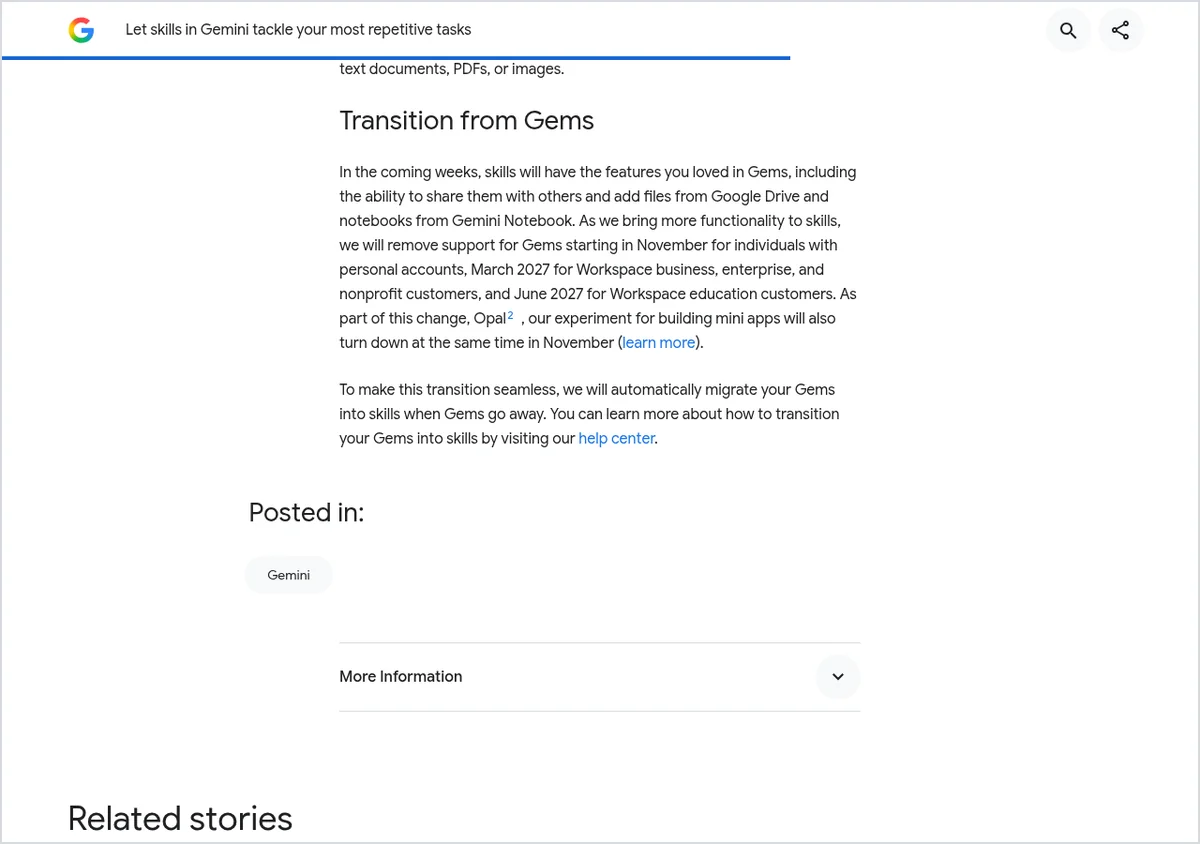
Google is retiring Gemini Gems for personal accounts in November 2026 and replacing them with Skills. Workspace business, enterprise and nonprofit accounts follow in March 2027, education accounts in June 2027. If you do nothing, Google converts Gems to skills automatically, with supported files. Moving one yourself takes about 5–15 minutes and needs no paid plan.
For current plans, prices and every Maitz article on Gemini, see our Gemini hub.
Updated October 6, 2026. This guide is based on Google’s official Gemini Apps Help articles and its September 30, 2026 announcement, as they read on the update date. We haven’t run the migration in our own account, so button names are quoted exactly as Google’s help pages give them. Google is rolling Skills out gradually, so your screen may not match yet.
At a glance
- The deadline: Gems end in November 2026 for personal accounts, March 2027 for Google Workspace business, enterprise and nonprofit accounts, and June 2027 for Workspace education accounts.
- If you wait: Google migrates Gems to skills automatically, along with supported files. Gems by Google Labs and the Opal experiment shut down in November and don’t migrate.
- What you need: a personal Google Account, age 18 or over,
Keep Activityturned on, and a computer with gemini.google.com. No Google AI subscription required. - Time: about 5 minutes for a Gem with no files, about 15 minutes for one with knowledge files.
What is a Gemini skill?
A Gemini skill is a saved set of instructions with a name and description that Gemini reads to decide on its own when to apply it. You can also call a skill directly by typing / in any Gemini chat.
Why migrate now instead of waiting
Three reasons. First, some files won’t make the trip: Skills don’t accept Word or Excel files (.docx, .doc, .xlsx) or GitHub files, so a Gem built around a spreadsheet price list or a Word style guide needs those converted. Second, several tools that worked inside Gems don’t work with skills yet, and it’s better to find that out while the Gem still exists. Third, skills behave differently. Gemini reads a skill’s name and description to decide on its own when to apply it, so a description written for a Gem often needs a rewrite.
For the announcement and timeline in news form, see our story Google Rolls Out Gemini Skills to Replace Gems. This guide covers the actual move.
Before you start
- Account type: a personal Google Account. Skills aren’t available yet for work or school accounts, which keep Gems until 2027. If your team in the US, UK or EU shares Gems on Workspace, you have more time, but plan for March 2027.
- Age: 18 or over. Google says access for younger users is coming.
- Setting:
Keep Activitymust be on. More on what that means for privacy below. - Device: a computer. Google lists a known issue where manually created skills don’t save in the Gemini mobile app, and uploading files to a skill only works on the web and in the Mac app.
- Region: Google describes the Gemini chat rollout as global and doesn’t list country restrictions on its Skills help pages.
- Cost: none. Google says Skills work without a Google AI subscription. Plan prices in USD, GBP and EUR are in our Gemini review.
Step 1: Take inventory and decide what moves
Open gemini.google.com, open the sidebar and go to Gems. List each Gem, whether you still use it, and what sits under “Knowledge.” A Gem you haven’t touched in months can be left for the automatic migration or dropped.
| Your Gem | What to do |
|---|---|
| Instructions only, no files | Wait for the automatic migration, or move it by hand in five minutes |
| Files in PDF, TXT, CSV or image formats | Move it manually so you can confirm the files loaded |
| Word or Excel files, or GitHub files | Move it manually now, after converting the files |
| Depends on Canvas, Deep Research, video or music creation | Keep the Gem for now and watch for updates; those tools don’t work with skills yet |
| A Gem by Google Labs | Copy its instructions somewhere safe; it shuts down in November and won’t migrate |
Step 2: Download knowledge files and convert what isn’t supported
- Next to the Gem, click Edit.
- Under “Knowledge,” open each file and click Download. There’s no bulk download, so it’s one file at a time.
- Create a folder on your computer named exactly what the skill will be called, in lowercase with hyphens, such as
write-weekly-client-update. - Move the downloaded files into that folder.
- Convert anything unsupported: save Word documents as PDF and export Excel sheets to CSV. Delete hidden files like
.DS_Store, which Google warns can make an upload fail.
Google’s supported list includes text and docs (.txt, .md, .rtf), data files (.csv, .json, .xml), .pdf, and images such as .jpg and .png. All files in one skill can total up to 100 MB.
Step 3: Create the skill and copy the instructions
- Keep the Gem’s tab open and open gemini.google.com in a new tab.
- In the sidebar, click Settings, then Skills.
- Near the top of the Skills page, click Create manually.
- Paste the Gem’s name, description and instructions into the matching fields. Google says the name is reformatted automatically.
- Click Create. If the Gem had no files, you’re done.
Before you click Create, fix the description. Google’s guidance: write it in the third person, say what the skill does, and list the situations where it applies, starting with “Use when…”. Avoid first person (“I can help you”) and second person (“You can use this to”). The limit is 1,024 characters.
Step 4: Add the files (only if the Gem had any)
You can’t drag files onto an existing skill. Google’s method is download, combine, re-upload:
- On the Skills page, hover over the new skill, open Skill actions and choose Download. You get a
.zipcontaining aSKILL.mdfile. - Unzip it and move
SKILL.mdinto your folder with the knowledge files. - Back on the Skills page, open Skill actions for the same skill and choose Replace skill.
- In the upload area, choose folder, select your folder and click Upload.
The folder name must match the skill name exactly. That’s the easiest mistake to make here.
Step 5: Test it
Start a new chat, type / and pick the skill (Google says the shortcut will change to @). Give it a real task you used to give the Gem and compare the result. Then try the same request without picking the skill to see whether Gemini applies it on its own. If it doesn’t, the description is probably too vague.
Once you’re happy, you can delete the old Gem. Deleting a skill, by contrast, can’t be undone and only works from the Skills page.
Worked example: a weekly client update Gem
Say you have a Gem that turns your rough notes into a Friday status email for clients, with a style guide in Word and a rate card in Excel. Here’s how it could look as a skill. We wrote this as an illustration and haven’t run it in a live account:
name: write-weekly-client-update
description: Drafts a weekly status email for a client from rough notes, following the attached style guide and rate card. Use when pasting notes about a client project and asking for a Friday update, a progress summary or a status email.

Instructions:
1. Group the notes into three sections: Done this week, Next week, Needs your input.
2. Keep it under 200 words, plain language, no jargon.
3. Quote rates only from rate-card.csv, in USD. If a rate isn't listed, write "rate to confirm" instead of estimating.
4. End with one clear question for the client.

Common mistakes to avoid:
- Don't promise delivery dates that aren't in the notes.
- Don't include other clients' names or details.
- If the client's name or project name is missing, ask for it instead of guessing.
What changed from the Gem: the Word style guide becomes style-guide.pdf, the Excel rate card becomes rate-card.csv, the description tells Gemini when to step in, and there’s a “common mistakes” section and a rule for missing information, both of which Google recommends.
Need more ideas for instructions worth saving? Our 20 copy-ready prompts were written for Grok Bot, but most work as reusable instructions in any assistant. If you also use Claude, a similar idea there is covered in our Claude Projects guide.
What skills can’t do yet
- Tools: per Google, most default tools from Gems don’t work with skills yet: Create video, Create music, Canvas, Deep Research and Guided learning. Connected Apps, including Workspace apps, do work.
- Sharing and Drive files: sharing skills and adding files from Google Drive or notebooks from Gemini Notebook are coming “in the coming weeks,” according to Google. If you share a Gem with colleagues, don’t delete it yet.
- Chat history: there’s no page listing recent chats for a given skill, as there was for Gems. Those chats show up in the regular side panel.
- Editing on mobile: skills with uploaded files can’t be edited in the mobile app or the Mac app for now, only on the web.
- Limit: create as many as you like, but only 100 can be active at once.
Troubleshooting
| Problem | Likely cause | Fix |
|---|---|---|
| No Skills option in Settings | Gradual rollout, or you’re signed in with a work or school account | Switch to a personal account, confirm Keep Activity is on, and check again in a few days |
| The skill won’t save | You created it manually in the mobile app | Create it on the web, or ask Gemini in a chat to create it |
| Upload fails | A Word or Excel file, a hidden file, or a folder name that doesn’t match the skill | Convert to PDF or CSV, delete hidden files, and match the names |
| Gemini never applies the skill on its own | Description too generic, or the skill is deactivated | Add specific “Use when…” situations and check that the skill is set to Activate |
Privacy check
Skills require Keep Activity. According to Google’s Gemini Apps Privacy Hub, with that setting on, your chats and the files you share are saved to your activity and used to provide and improve Google services, including training generative AI models, with help from human reviewers. Activity auto-deletes after 18 months by default; you can choose 3 or 36 months instead. In the EEA and Switzerland, Gemini Apps are provided by Google Ireland Limited, and where EU or UK data protection law applies, Google cites legitimate interests as its legal basis for using chats to improve its services. Practical rule: a rate card or a style guide is fine to attach; client lists, contracts with personal data or financial records are not.
For what Keep Activity actually controls, and how the training opt-out works in ChatGPT and Claude too, see our opt-out guide.
FAQ
When exactly do Gems go away?
In November 2026 for personal Google Accounts; Google hasn’t given a specific day. March 2027 for Workspace business, enterprise and nonprofit accounts, and June 2027 for Workspace education accounts.
Will I lose my Gems if I do nothing?
No. Google says it will convert them to skills automatically, along with supported files. The exceptions are Gems by Google Labs, which won’t migrate, and files in unsupported formats.
Do skills cost anything?
No. Google’s help center says skills are available without a Google AI subscription and can be used in your chats, and its announcement says they’re available on every Google AI tier.
Can I upload Word or Excel files to a Gemini skill?
No. Skills don’t accept .docx, .doc or .xlsx files, or GitHub files; convert them before migrating.
Can I import a skill from another tool?
Yes. You can upload a SKILL.md file made elsewhere, or a folder or .zip that contains one, on the web or in the Mac app.
Does my Workspace account at work get skills now?
Not yet. Google says Workspace business, enterprise, nonprofit and education customers get skills in the coming weeks, and those accounts keep Gems until March or June 2027.
Bottom line
If you have two or three Gems you actually use, especially ones with Word or Excel files, give them half an hour this month: convert the files, move them by hand and sharpen the descriptions so Gemini knows when to use them. Leave the rest to the automatic migration. Next step: see what else the free tier covers in our full Gemini review, or browse more Maitz guides.
Sources
- Google, Gemini Apps Help: “About the transition from Gems to skills” (accessed October 6, 2026)
- Google, Gemini Apps Help: “Create & manage skills for Gemini Apps” (accessed October 6, 2026)
- Google, Gemini Apps Help: “Write effective skills for Gemini Apps” (accessed October 6, 2026)
- Google, Gemini Apps Privacy Hub (accessed October 6, 2026)
- Google, The Keyword blog: “Let skills in Gemini tackle your most repetitive tasks,” Deven Tokuno, September 30, 2026
- Google, Gemini Apps release notes, September 30, 2026

